Buttons
Diagram
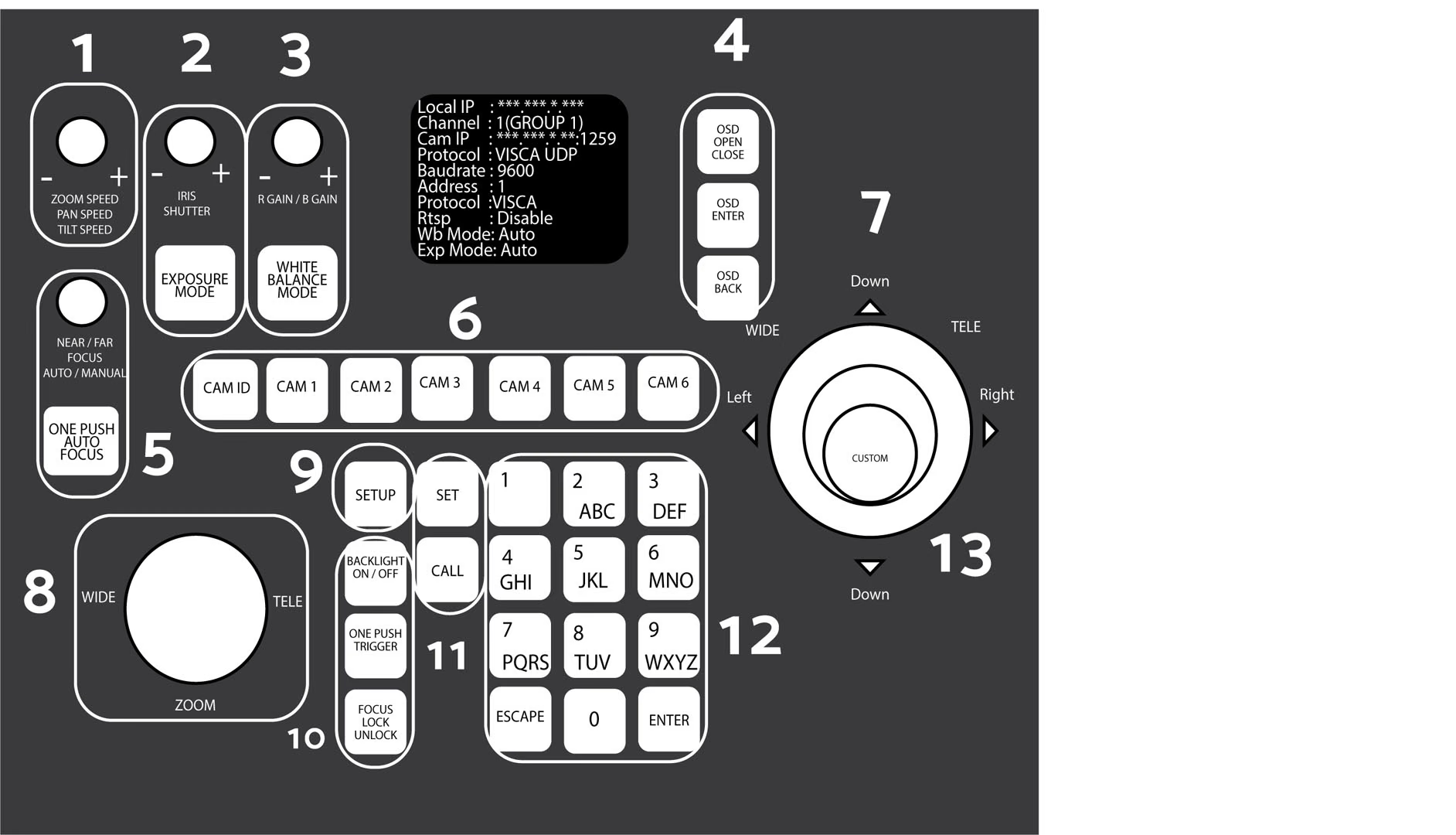
Descriptions
| Item # | Description |
|---|---|
| 1 | ZOOM / PAN / TILT SPEED |
| 2 | IRIS SHUTTER GAIN / Exposure |
| 3 | R Gain / Blue Gain / White Balance |
| 4 | Camera OSD Control |
| 5 | Focus Mode Control |
| 6 | Camera Select Buttons |
| 7 | Joystick Control |
| 8 | Zoom Control Dial |
| 9 | System Setup |
| 10 | Focus Lock/Unlock, Backlight, One Push |
| 11 | Preset Control Buttons |
| 12 | Alpha-Numeric Keypad |
| 13 | Unique Custom Button |
1. Speed Control
The Speed Control section allows you to adjust the speed at which you pan, tilt, and zoom the camera.
-
[SPEED] Knob
Press the Speed Control knob in to cycle through zoom, pan, and tilt speeds options. Twist the Speed Control knob to increase or decrease the set control speed.
- Zoom Speed Range: 1 - 7
- Pan Speed Range: 1 - 24
- Tilt Speed Range: 1 - 20
2. Iris Shutter / Exposure
The Exposure Control section allows you to adjust the exposure settings of the camera.
-
[IRIS / SHUTTER] Knob
Twist the [IRIS / SHUTTER] knob to adjust the Iris / Shutter value.
Press the [IRIS / SHUTTER] knob to toggle between Iris and Shutter adjustments.
Controls the camera’s Gain. Press in the knob to change from Iris > Shutter > Gain
-
[EXPOSURE MODE] Button
Press the [EXPOSURE MODE] button to cycle through Exposure modes.
Options include: Auto, Manual, Shutter Priority, Iris Priority, & Brightness Priority.
3. Red Gain / Blue Gain Control
-
[R GAIN / B GAIN] Dial
Twist the [R GAIN / B GAIN] knob to adjust the Red Gain / Blue Gain value.
Press the [R GAIN / B GAIN] knob to toggle red gain and blue gain adjustment control.
-
WHITE BALANCE MODE Button
Press the [WHITE BALANCE MODE] button to cycle through the White Balance Modes.
Options include: Auto, Indoor, Outdoor, One Push, & Manual.
4. Camera OSD Control
The Camera OSD Control section allows you to open and adjust the camera’s on screen display menu.
-
[OSD OPEN / CLOSE] Button
- Press the [OSD OPEN / CLOSE] button to open and close the on screen display menu.
- Move the joystick up, down, left, and right to traverse the camera’s OSD menu.
-
[OSD ENTER] Button
Press the [OSD ENTER] button to select an OSD menu option.
-
[OSD BACK] Button
Press the [OSD BACK] button to go back a menu option.
5. Focus Mode Control
The Focus Control section allows you to adjust the focus value of the camera.
-
[NEAR / FAR FOCUS] Dial
Twist the [NEAR / FAR FOCUS] dial to focus the camera’s image on your scene.
Press the [NEAR / FAR FOCUS] dial in to toggle Auto Focus and Manual focus modes.
-
[ONE PUSH AUTO FOCUS] Button
Press the [ONE PUSH AUTO FOCUS] button to automatically focus the image on the scene while staying in Manual Focus mode.
6. Camera Select Buttons
The Camera Select section allows you to select a camera to control.
-
[CAM ID] Button
The [CAM ID] button allows you to select any camera on the controller using the alpha-numeric keypad.
-
[CAM #] Button
The [CAM #] button allows you to quickly select a camera to control.
Options include: 1 - 6
7. Joystick Control
The joystick controller allows you to pan, tilt, and zoom (twist) the camera. The control speed is affected by the Speed Control dial settings.
8. Zoom Control Dial
The Zoom Control sections allow you to zoom the camera in and out of the scene.
-
[FINE TUNE ZOOM] Knob
The [FINE TUNE ZOOM] knob allows you to finely zoom the camera in and out at the lowest speed (1) setting.
9. System Setup
The Controller OSD Setup allows you to adjust the settings of the controller.
-
[SETUP] Button
Press the [SETUP] button to open the joystick’s OSD menu.
10. Focus Lock / Unlock / Backlight / One-Push
-
[BACKLIGHT ON / OFF] Button
Press the [BACKLIGHT ON / OFF] button to toggle the camera’s backlight compensation mode.
-
[ONE PUSH TRIGGER] Button
Press the [ONE PUSH TRIGGER] button to trigger the camera to calculate the scene’s white balance value.
-
[FOCUS LOCK / UNLOCK] Button
Press the [FOCUS LOCK / UNLOCK] button to lock or unlock the camera’s focus value from the current position.
11. Preset Control Buttons
The Preset Control section allows you to set and call presets of the cameras.
-
[SET] Button
Press the [SET] button to set a camera preset. Use the alpha-numeric keypad to set a preset number.
-
[Call] Button
Press the [CALL] button to call a camera preset. Use the alpha-numeric keypad to call a preset number.
-
Quick set preset shortcut
Press and hold a number on the alpha-numeric keypad for 3+ seconds to set a camera preset in the current location for that preset number.
-
Quick call preset shortcut
Quickly press a number on the alpha-numeric keypad to call a camera preset.
12. Alpha-numeric Keypad
The alpha-numeric keypad allows you to use many of the controller features that require numbers and letters, such as adding a camera from the controller OSD.
13. Unique Custom Button
Customizable button located on the top of the joystick controller. This is best utilized for the most frequently needed custom commands.