Buttons
Button Diagram
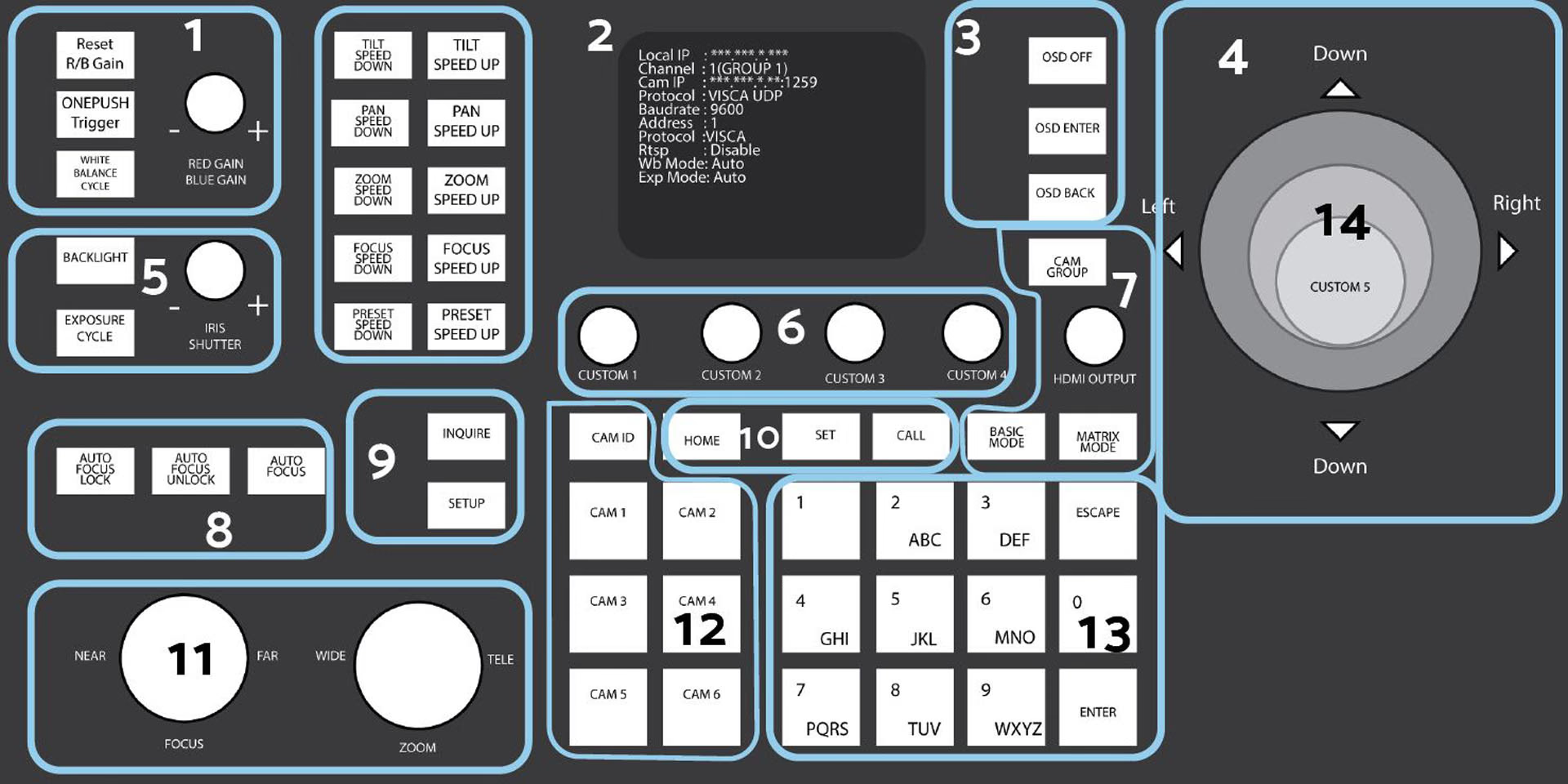
SuperJoy-G1 Button Descriptions
| Number | Control | Number | Control |
|---|---|---|---|
| 1 | White Balance Control | 8 | Focus Mode Control |
| 2 | Speed Control | 9 | Controller Information |
| 3 | Camera OSD Control | 10 | Preset Control Buttons |
| 4 | Joystick Controller | 11 | Focus & Zoom Dials |
| 5 | Exposure Control | 12 | Camera Select Control |
| 6 | Custom Control Buttons | 13 | Alpha-Numeric Keypad |
| 7 | SuperJoy Unique | 14 | Custom Button Knob |
White Balance Control
Allows you to adjust the white balance settings of the camera.
- [RESET R/B GAIN] Button: Press the [RESET R/B GAIN] button to reset the red & blue gain to default values.
- [ONEPUSH TRIGGER] Button: Press the [ONEPUSH TRIGGER] button to calibrate the white balance of the room.
- [WHITE BALANCE CYCLE] Button: Press the [WHITE BALANCE CYCLE] button to cycle through the White Balance Modes. Options include: Auto, Indoor, Outdoor, OnePush, & Manual.
- [RED GAIN / BLUE GAIN] Knob: The [RED GAIN / BLUE GAIN] knob can be used to adjust the red & blue gain values.
Cameras must be in OnePush White Balance in order for the OnePush Trigger to function.
Speed Control Buttons
- [TILT SPEED UP / DOWN] Buttons: Press the [TILT SPEED UP / DOWN] buttons to adjust the camera tilt speed.
- [PAN SPEED UP / DOWN] Buttons: Press the [PAN SPEED UP / DOWN] buttons to adjust the camera pan speed.
- [ZOOM SPEED UP / DOWN] Buttons: Press the [ZOOM SPEED UP / DOWN] buttons to adjust the camera zoom speed.
- [FOCUS SPEED UP / DOWN] Buttons: Press the [FOCUS SPEED UP / DOWN] buttons to adjust the camera focus speed.
- [PRESET SPEED UP / DOWN] Buttons: Press the [PRESET SPEED UP / DOWN] buttons to adjust the camera preset speed.
Speed adjustments made via the joystick will be saved to the currently selected camera.
Exposure Mode Controls
- [BACKLIGHT] Button: Press the [BACKLIGHT] button to toggle the camera’s back light compensation.
- [EXPOSURE CYCLE] Button: Press the [EXPOSURE CYCLE] button to cycle through the Exposure Modes. Options include: Auto, Manual, Shutter Priority, Iris Priority, & Brightness Priority.
- [IRIS / SHUTTER] Knob: The [IRIS / SHUTTER] knob allows you to adjust the Iris and Shutter values of the camera.
Joystick Controller
The joystick allows you to pan, tilt, and zoom (twist) the camera. The control speed is affected by the Speed Control dial.
Exposure Control
The Exposure Control section allows you to adjust the exposure settings of the camera.
- [BACKLIGHT] Button: Press the [BACKLIGHT] button to toggle the camera’s backlight compensation.
- [EXPOSURE CYCLE] Button: Press the [EXPOSURE CYCLE] button to cycle through the Exposure Modes. Options include: Auto, Manual, Shutter Priority, Iris Priority, & Brightness Priority.
- [IRIS / SHUTTER] Knob: The [IRIS / SHUTTER] knob allows you to adjust the Iris and Shutter values of the camera.
Custom Control Buttons
Use the Custom Control buttons to set up custom commands typically not available to the SuperJoy.
- [CUSTOM 1 - 4] Button: The four (4) Custom buttons allow you to send custom commands to network based equipment. Options Include: HTTP Trigger, UART, TCP, UDP, & Super Presets.
SuperJoy Unique Control
The SuperJoy includes unique buttons for use with
- [CAM GROUP] Button: Press the [CAM GROUP] button to cycle through the five (5) Camera Groups.
- [HDMI OUTPUT] Button: Press the [HDMI OUTPUT] button to enable the HDMI output of the connected camera.
- [BASIC MODE] Button: Press the [BASIC MODE] button to toggle between Basic Mode control and normal control. While in Basic Mode, only the P/T/Z and preset options will function.
- [MATRIX MODE] Button: Press the [MATRIX MODE] button to toggle between Matrix Mode control and normal control. While in Matrix Mode, only presets 1 - 3 can be called on cameras 1 - 3.
Focus Mode Control
The Focus Mode section allows you to change the focus mode of the camera.
- [AUTO FOCUS LOCK] Button: Press the [AUTO FOCUS LOCK] button to lock the focus in its current position. Auto Focus is paused while Focus Lock is enabled.
- [AUTO FOCUS UNLOCK] Button: Press the [AUTO FOCUS UNLOCK] button to unlock the focus from its current position.
- [AUTO FOCUS] Button: Press the [AUTO FOCUS] button to set the camera to auto focus mode.
Controller Information Button
The Controller Information section allows you to find and edit the parameters of the controller.
- [INQUIRE] Button: Press the [INQUIRE] button to open the controller’s device list.
- [SETUP] Button: Press the [SETUP] button to open the controller’s OSD menu. Refer to the Joystick OSD Menu Control section of this guide for more information.
Preset Control Buttons
The Preset Control section allows you to set and call presets of the camera.
- [HOME] Button: Press the [HOME] button to send the camera to the home position (facing forward).
- [SET] Button: Press the [SET] button to set a camera preset. Use the alpha-numeric keypad to set a preset number.
- [CALL] Button: Press the [CALL] button to call a camera preset. Use the alpha-numeric keypad to call a preset number. Refer to the Setting and Recalling Presets section of this guide for more information.
- Quick Set Preset Shortcut: Press and hold a number on the alpha-numeric keypad for 3+ seconds to set a camera preset in the current location.
- Quick Call Preset Shortcut: Quickly press a number on the alpha-numeric keypad to call a camera preset.
Focus & Zoom Control Dials
The Focus & Zoom Control section allows you to adjust the image based on the scene.
- [FINE TUNE FOCUS] Dial: The [FINE TUNE FOCUS] dial allows for precise manual control of a selected camera’s focus.
- [FINE TUNE ZOOM] Dial: The [FINE TUNE ZOOM] dial allows you to finely zoom the camera in and out at the lowest speed (1).
Camera Select Buttons
The Camera Select section allows you to select a camera to control.
- [CAM ID] Button: The [CAM ID] button allows you to select any camera on the controller using the alpha-numeric keypad.
- [CAM #] Button: The [CAM #] button allows you to quickly select a camera to control. Options include: 1 - 6.
Alpha-Numeric Keypad
The alpha-numeric keypad allows you to use many of the controller features that require numbers and letters as well as input custom commands when selecting a camera.
Custom Button Knob
5th customizable button, best utilized for the most frequently needed custom commands.