Settings
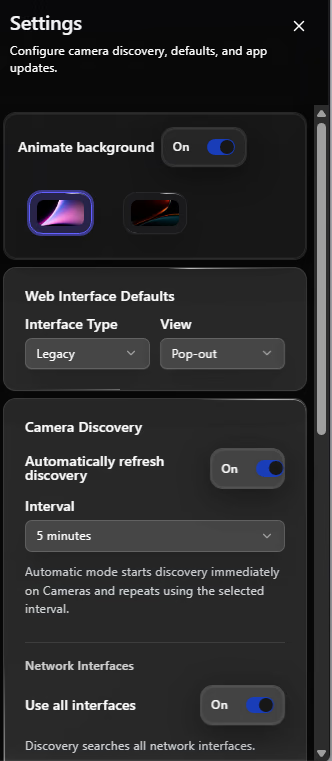
The Settings panel lets you configure Device Manager's appearance, web interface behavior, automatic camera discovery, preview capture rate, saved application data, and software updates.
To open Settings, click the Settings button (gear icon) in the top-right toolbar.
Appearance
| Setting | Options | Description |
|---|---|---|
| Animate background | On / Off | Turns the animated background on or off. |
| Theme options | Brighter glass, Darker glass | Choose between a brighter glass theme and a darker glass theme. The theme's animation follows the Animate background toggle. |
Web Interface Defaults
These settings control how a camera's web interface opens when you click the globe icon next to its IP address in the device table.
| Setting | Options | Description |
|---|---|---|
| Interface Type | Legacy, Horizon | Selects which PTZOptics web interface version loads when opening a camera's web UI. Legacy loads the standard camera control interface; Horizon loads the modern Horizon interface on supported cameras. |
| View | Pop-out, In-app | Controls whether the web interface opens in a separate window (Pop-out) or inside the Device Manager window (In-app). |
Camera Discovery
These settings control how Device Manager scans your network for cameras.
| Setting | Options | Description |
|---|---|---|
| Automatically refresh discovery | On / Off | Starts discovery immediately on the Cameras view and repeats automatically using the selected interval. |
| Interval | Time interval (default 5 minutes) | Sets how often automatic camera discovery repeats when Automatically refresh discovery is turned on. |
| Use all interfaces | On / Off | Under Network Interfaces, searches all network interfaces on your computer when turned on. Turn off to limit discovery to specific network interfaces. |
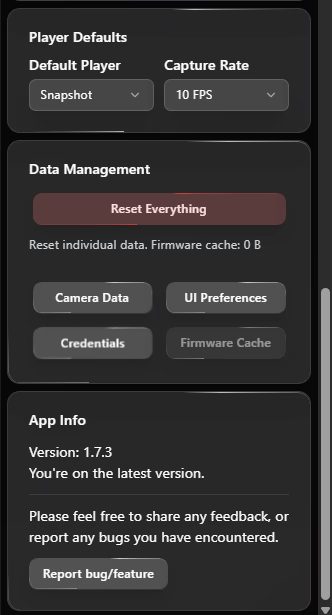
Player Defaults
These settings control how camera feeds are previewed within Device Manager when the Snapshot column is enabled in the device table.
| Setting | Options | Description |
|---|---|---|
| Default Player | Snapshot | Sets the method used to preview camera output within the application. |
| Capture Rate | 1, 5, 10, 15, 30, 60 FPS | Sets the frame rate at which camera snapshots refresh in the application. Higher frame rates produce smoother previews at the cost of higher network traffic. 10 FPS is selected by default. |
Data Management
Data Management displays the current Firmware cache size and lets you reset all stored application data or clear individual categories.
| Button | Description |
|---|---|
| Reset Everything | Clears all saved application data, including camera data, UI preferences, stored credentials, and cached firmware files. |
| Camera Data | Clears saved camera records, manually added cameras, nicknames, favorites, and groups. |
| UI Preferences | Resets theme, animation, and table column layout preferences to their defaults. |
| Credentials | Removes stored camera login credentials. |
| Firmware Cache | Deletes locally cached firmware files. Disabled when the firmware cache is 0 B. |
Resetting application data is permanent and cannot be undone. Selected settings, cached files, or stored credentials are removed immediately.
App Info
| Item | Description |
|---|---|
| Version | Displays the currently installed version of PTZOptics Device Manager (for example, Version: 1.7.3) and indicates whether you are on the latest version. |
| Report bug/feature | Opens the bug report and feature request submission form to send feedback directly to the PTZOptics software development team. See Report a Bug or Request a Feature for details. |