Setting & Clearing Pan/Tilt Limits with Packet Sender (Advanced)
Packet Sender lets you send raw VISCA commands directly to a PTZOptics camera, which is a more advanced way to set or clear Pan/Tilt Limits. If you're looking for the quickest way to manage Pan/Tilt Limits, see the Pan/Tilt Limits guide for your camera instead — for example, Move 4K or Move SE.
Setting Pan/Tilt Limits with Packet Sender
You can find the full list of VISCA commands for G3 and G2 cameras here: PTZOptics Developer Portal. Download and install Packet Sender from https://packetsender.com/download. You can also download this Packet Sender database which includes all of the commands used in this guide. Import the database within Packet Sender from File > Import Database.
Here are the commands we will be using to set pan/tilt limits:
| Command | Function | Command Packet | Comments |
|---|---|---|---|
| Pan_TiltLimitSet | LimitSet | 81 01 06 07 00 0W 0Y 0Y 0Y 0Y 0Z 0Z 0Z 0Z FF | W: 1 (UpRight), 0: DownLeft YYYY: Pan position, ZZZZ: Tilt position |
| * | LimitClear | 81 01 06 07 01 0W 07 0F 0F 0F 07 0F 0F 0F FF | W: 1 (UpRight), 0: DownLeft YYYY: Pan position, ZZZZ: Tilt position |
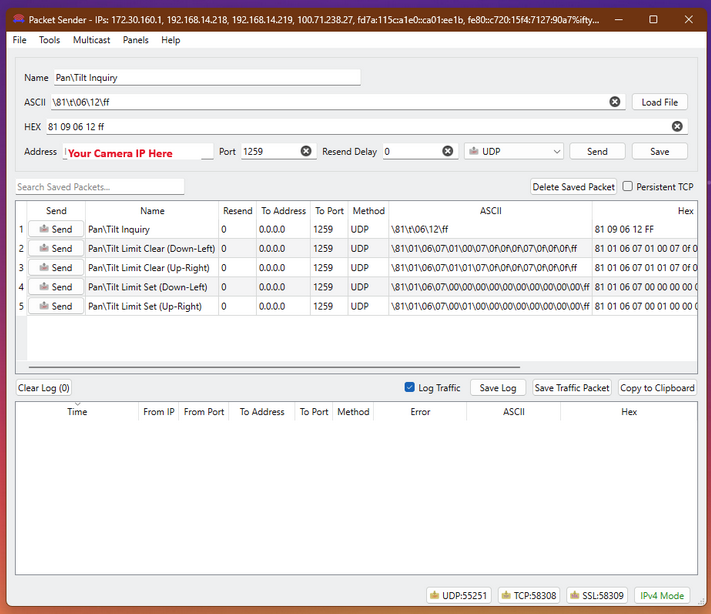
Packets should be sent to the camera's IP address using UDP on Port 1259 as pictured below. Enter your camera's IP address in the Address field. Note: The UDP server within Packet Sender may be disabled by default. Enable it before sending commands by clicking on the UDP server button at the bottom of the interface.
-
Adjust the camera to the upper right limit of the intended boundary zone.
-
Within Packet Sender, select the Pan/Tilt Inquiry command (
81 09 06 12 ff). The HEX field will populate with the command. Click Send. This command will prompt a response from the camera that will return the camera's current pan/tilt coordinates in the log section, boxed in red below.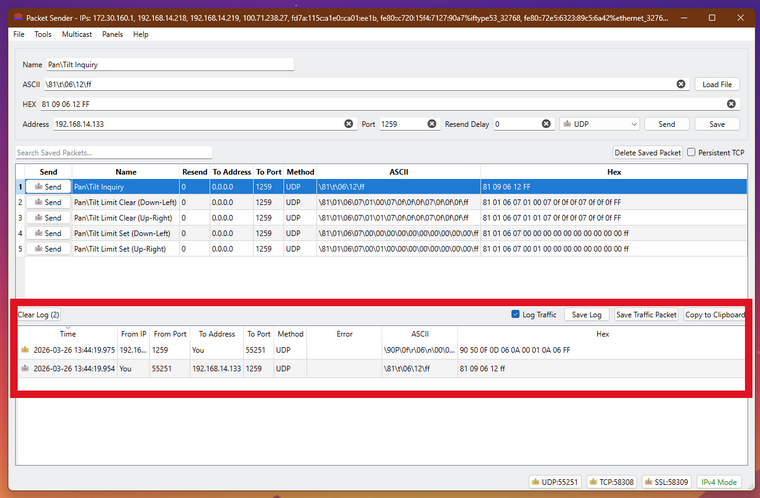
-
Note the green-highlighted coordinates in the example response below.
Pan Tilt Inquiry Response 90 50 00 01 07 05 00 00 0f 0a ff Coordinates -
Prepare the pan tilt limit set command (81 01 06 07 0x 01 00 00 00 00 00 00 00 00 ff).
-
Replace the green-highlighted characters with the coordinates obtained from the inquiry response, then send the command. Below is an example of the pan tilt limit set command with
Pan Tilt Limit Set Command 81 01 06 07 00 0x 00 01 07 05 00 00 0f 0a ff Up-Right (01) or Down-Left (00) Coordinates -
Attempt to move the camera past the set upper right limits to confirm the limits are set.
-
Repeat steps 1 through 3, adjusting the camera to the lower left limit and using the Down-Left designation in the pan tilt limit set command, as pictured above.
Clearing Pan/Tilt Limits with Packet Sender
You can find the full list of VISCA commands for G3 and G2 cameras here: VISCA API | PTZOptics. Download and install Packet Sender from https://packetsender.com/download. You can also download this Packet Sender database, which includes all of the commands used in this guide. Import the database within Packet Sender from File > Import Database.
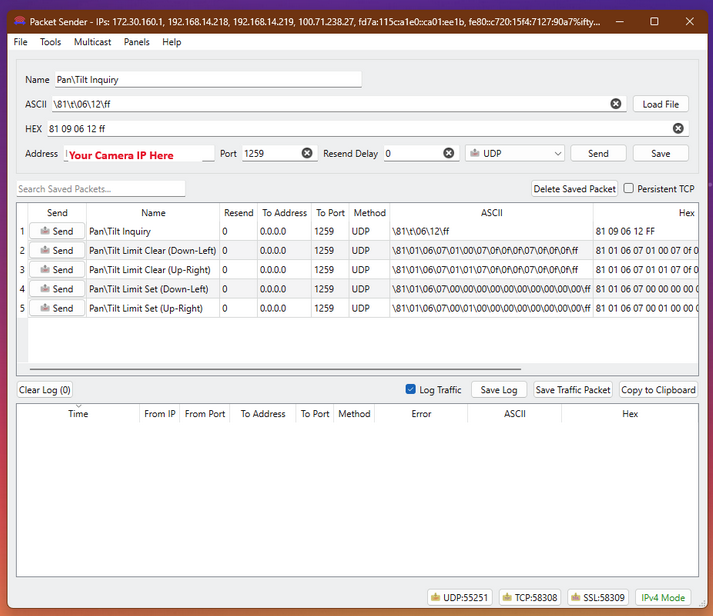
Packets should be sent to the camera's IP address using its current UDP port. The camera's default UDP port is 1259. Enter your camera's IP address in the Address field. Note: The UDP server within Packet Sender may be disabled by default. Enable it before sending commands by clicking on the UDP server button at the bottom of the interface.
-
Using Packet Sender, send the Pan\Tilt Limit Clear commands.
-
Pan\Tilt Limit Clear Command (Up-Right) (
81 01 06 07 01 01 07 0f 0f 0f 07 0f 0f 0f FF). -
Pan\Tilt Limit Clear Command (Down-Left) (
81 01 06 07 01 00 07 0f 0f 0f 07 0f 0f 0f FF). -
Note that the camera will not move through its pan/tilt startup dance when receiving these commands, but the limits will clear. You should also receive confirmation packets back from the camera.
-
Up-Right Clear Confirmation Packets: (
90 42 ff) (90 52 ff) -
Down-Left Clear Confirmation Packets: (
90 41 ff) (90 51 ff)