The Automation feature enables the camera to operate intelligently without manual PTZ input. Depending on the mode selected, the camera can track moving subjects, maintain a consistent framing, or cycle through saved presets automatically.
Enabling Automation
On the Basic View dashboard, find the Automation row beneath the Auto Focus toggle:
- Turn on the Automation toggle to enable it
- Click the gear icon to the right to open Automation Settings and configure the behavior
Automation Settings Tab
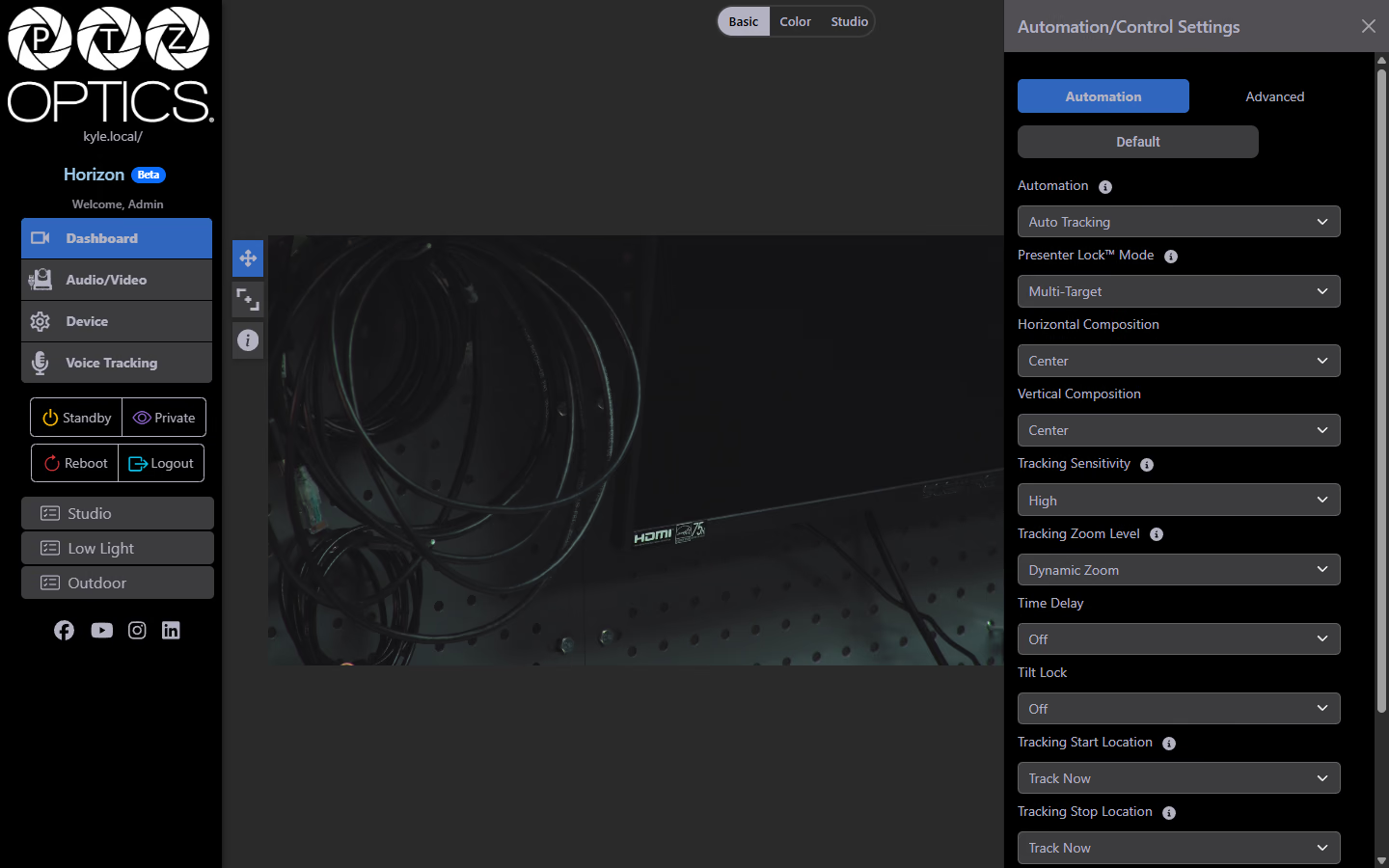
Automation Mode
Selects the primary behavior when Automation is active.
| Option | Description |
|---|
| Auto Tracking | The camera detects and follows a subject as they move within the frame. Ideal for solo presenters, instructors, or performers who move around. |
| Auto Framing | The camera automatically adjusts framing to keep one or more people well-composed in the shot, without locking onto a single subject. Ideal for group shots or conference rooms. |
| Preset Tour | The camera cycles through a defined sequence of saved presets on a timer, returning to each position automatically. |
Presenter Lock™ Mode
Controls whether a visual indicator is drawn around tracked subjects and how the camera selects which subject to track.
| Option | Description |
|---|
| Off | No visual overlay (default, recommended for production). |
| Select Target | When enabled, displays a bounding box around the currently selected tracking target. This bounding box will be shown on the camera's live feed. |
| Multi-Target | Shows bounding boxes around all detected subjects allowing the user to choose which target to track. These bounding boxes are not shown on the live video feed. They are only shown in Horizon. |
| Debug | Displays full tracking debug data and all detection overlays. |
Horizontal Composition
Sets where in the frame the tracked subject is positioned horizontally.
| Option | Description |
|---|
| Left | Subject is framed toward the left side of the shot. |
| Center | Subject is centered horizontally in the frame. |
| Right | Subject is framed toward the right side of the shot. |
Vertical Composition
Sets where in the frame the tracked subject is positioned vertically.
| Option | Description |
|---|
| Top | Subject is framed toward the upper portion of the shot. |
| Center | Subject is centered vertically in the frame. |
| Bottom | Subject is framed toward the lower portion of the shot. |
Tracking Sensitivity
Controls how responsively the camera reacts to subject movement.
| Option | Description |
|---|
| Low | Camera moves slowly and only responds to significant, sustained movement. Reduces jitter in busy scenes. |
| Medium | Balanced tracking response — good default for most applications |
| High | Camera responds quickly to any detected movement. Best for fast-moving subjects like dancers or athletes. |
Tracking Zoom Level
Sets how tightly the camera frames the subject when tracking.
| Option | Description |
|---|
| Dynamic Zoom | Camera automatically adjusts zoom level based on subject distance and movement. |
| Medium Close Up | Maintains a tight head-and-shoulders frame. |
| Medium Shot | Waist-up framing. |
| Long Shot | Full-body framing — subject visible head to toe (default). |
Time Delay
| Option | Description |
|---|
| Off | Camera begins tracking immediately when a subject is detected (default). |
| On | Camera waits a brief period before initiating tracking movement, reducing false triggers from brief motion. |
Tilt Lock
| Option | Description |
|---|
| Off | Camera moves freely on both pan and tilt axes during tracking |
| On | Camera tilt is locked in place. The Camera will only use pan movements to follow the subject. Useful for fixed-height setups where vertical drift is undesirable. |
Tracking Start Location
Defines where the camera moves to before beginning to track.
| Option | Description |
|---|
| Track Now | Camera begins tracking from its current position immediately (default). |
| Home | Camera moves to the home position first, then begins tracking. |
| Preset 0–254 | Camera recalls the specified preset position before tracking begins. |
Tracking Stop Location
Defines where the camera moves to when Automation is disabled or the subject is lost.
| Option | Description |
|---|
| Track Now | Camera stays at its last tracked position (default). |
| Home | Camera returns to the home position. |
| Preset 0–254 | Camera recalls the specified preset. |
Target Timeout
A numeric spinbutton (default: 6). Sets how many seconds the camera waits after losing a subject before taking the "Target Loss" action. This prevents the camera from immediately snapping away due to a brief occlusion.
Target Loss Preset
Defines what the camera does after the Target Timeout expires without re-acquiring the subject.
| Option | Description |
|---|
| Track Now | Camera stays in its current position and continues scanning. |
| Home | Camera returns to the home position (default). |
| Preset 0–254 | Camera recalls the specified preset. |
Advanced Settings Tab
The Advanced Settings tab contains settings that affect how the camera moves and displays information during automation.
Preset Freeze
| Option | Description |
|---|
| Off | Camera output updates continuously during preset recall movements (default). |
| On | Camera freezes the output frame during preset transition movements, then cuts to the new position |
Zoom Mode
Sets which zoom technology is used during tracking.
| Option | Description |
|---|
| Optical | Uses the camera's optical zoom only. No quality loss (default). |
| Digital 2× | Extends range with 2× digital zoom. Some image quality reduction expected. |
| Digital 4× | Extends range with 4× digital zoom. Some image quality reduction expected. |
| Digital 8× | Extends range with 8× digital zoom. Some image quality reduction expected. |
| Digital 16× | Maximum digital reach (some image quality reduction expected). |
| SuperZoom | Doubles the total zoom range of the camera by applying a 2× digital magnification to the 4K sensor before entering the optical zoom providing a smoother zoom transition. With the magnification effectively doubled while using SuperZoom, the camera's image resolution is set to 1080p. |
Motion Sync
| Option | Description |
|---|
| Off | Pan and zoom movements execute independently at their own speeds. |
| On | Pan/tilt and zoom movements are synchronized to arrive at the target position simultaneously, producing smoother, more broadcast-quality tracking (default). |
Display Info
| Option | Description |
|---|
| Off | No on-screen overlay during automation. |
| On | Displays tracking status and subject information as an on-screen overlay (default). |
Tally Mode
| Option | Description |
|---|
| Off | Tally light on the camera front is inactive. |
| On | Tally light activates when the camera is being tracked/selected. This is useful in multi-camera production environments to indicate the active camera (default). |