Image Settings
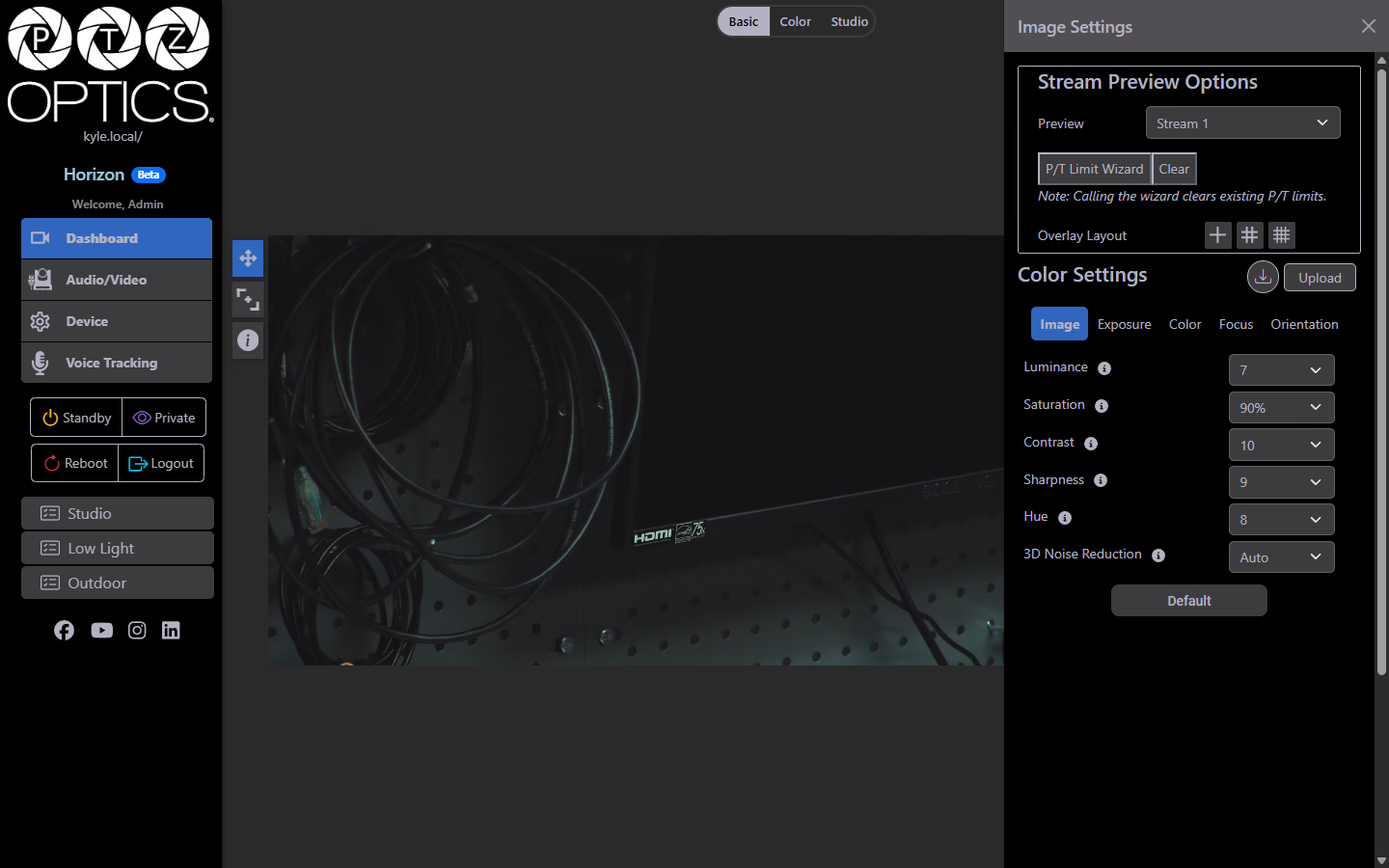
The Image Settings panel is accessed by clicking the cog wheel icon in the top-right corner of the video feed on the Dashboard. It contains stream preview options and five color/image configuration tabs.
Stream Preview Options
| Setting | Description |
|---|---|
| Preview | Selects the video source displayed in the dashboard preview. Options: Stream 1, Stream 2, Snapshot. |
P/T Limit Wizard
The P/T Limit Wizard button launches a guided wizard for setting pan and tilt limits on the camera.
Click and drag your mouse in the video preview to draw a box representing the desired pan/tilt limits. The camera will automatically move to each corner of the box to test and set the limits.
Running the wizard clears any existing P/T limits.
The Clear button removes current P/T limits without running the wizard.
Overlay Layout
Toggles a visual overlay on the preview feed. Three overlay options are available:
| Option | Description |
|---|---|
| Center Cross | Displays a single crosshair at the center of the frame. |
| Rule of Thirds | Displays a rule-of-thirds grid overlay. |
| Quarter Grid | Displays a grid that divides the frame into quarters. |
Selecting an active overlay toggles it off.
Color Settings
The Color Settings section contains five tabs. Each tab includes a Default button that resets all settings on that tab to factory defaults.
Individual settings can also be reset using the reset icon (↺) next to each control.
Image Tab
| Setting | Options | Description |
|---|---|---|
| Luminance | 0–14 | Controls overall brightness of the image. |
| Saturation | 60%–200% (in 10% steps) | Controls color intensity. |
| Contrast | 0–14 | Controls the difference between light and dark areas. |
| Sharpness | 0–11 | Controls edge definition in the image. |
| Hue | 0–14 | Shifts the color hue of the image. |
| 3D Noise Reduction | Off, 1–8, Auto | Reduces image noise. Higher values apply stronger noise reduction. Auto lets the camera adjust dynamically. |
Exposure Tab
| Setting | Options | Description |
|---|---|---|
| Mode | Auto, Manual, SAE, AAE | Sets the exposure mode. SAE = Shutter Auto Exposure. AAE = Aperture Auto Exposure. |
| Compensation Mode | On / Off (checkbox) | Enables exposure compensation adjustment. |
| Backlight | On / Off (checkbox) | Brightens a subject that appears too dark because of a strong light source or bright background behind them, such as a window or stage light. |
| Gain Limit | 0–14 | Sets the maximum gain the camera will apply in low-light conditions. |
| Anti-Flicker Mode | Off, 50Hz, 60Hz | Reduces flicker caused by artificial lighting. Match to your local power frequency. |
| Meter Region | Average, Center, Smart, Top | Determines which area of the frame is used to calculate exposure. |
| Dynamic Range Control | 0–8 | Adjusts the camera's ability to capture detail in both bright and dark areas of the scene simultaneously. |
Color Tab
| Setting | Options | Description |
|---|---|---|
| White Balance Mode | Auto, Indoor, Outdoor, Manual, OnePush, VAR | Sets the white balance behavior. OnePush performs a one-time white balance lock. VAR allows a custom color temperature to be set. |
| Red Gain Tuning | Slider | Fine-tunes the red channel. Adjusts relative to the current white balance mode. |
| Blue Gain Tuning | Slider | Fine-tunes the blue channel. Adjusts relative to the current white balance mode. |
Focus Tab
| Setting | Options | Description |
|---|---|---|
| Focus Mode | Auto, Manual | Sets whether focus is controlled automatically or manually. |
| AF Zone | Top, Center, Bottom, Front | Sets the region of the frame used for autofocus detection. |
| Auto Focus Sensitivity | High, Normal, Low | Controls how quickly autofocus responds to changes in the scene. |
| Focus Lock | Unlock, Lock | Locks the current focus position so it does not adjust automatically. |
| Focus Limit | On / Off (checkbox) | Enables a minimum focus distance limit to prevent the camera from focusing on very close objects. |
Orientation Tab
| Setting | Options | Description |
|---|---|---|
| Auto Inversion Mode | On / Off (checkbox) | When enabled, the camera automatically corrects the image orientation when the head is inverted. |
| Flip Image | On / Off (checkbox) | Flips the image vertically. |
| Mirror Image | On / Off (checkbox) | Mirrors the image horizontally. |
| Black and White Mode | On / Off (checkbox) | Switches the image to black and white. |