Move SE Pan/Tilt Limits Guide
Configuring Pan/Tilt Limits
Configuring pan/tilt limits allows you to limit the pan and tilt range of the camera. This is useful for limiting the camera’s observable area. For example, in a live broadcast stage play, it may be useful to limit the camera's pan range to the left and right ends of the stage, and limit the camera’s tilt range to the highest and lowest parts of the stage. This prevents the camera from being accidentally turned around to face the audience, and generally limits the camera to show only what's intended to be shown.
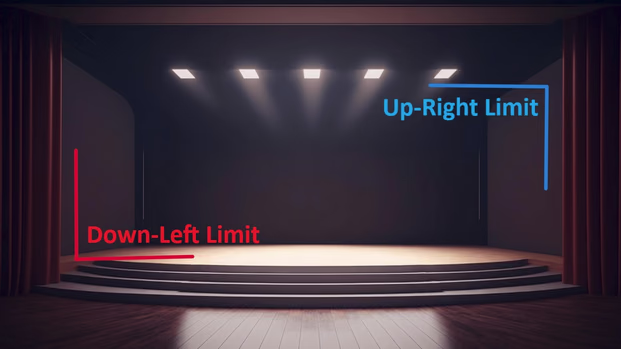
The camera does not include a built-in wizard for setting pan/tilt limits. Set limits using CMP, the Desktop Control App, or Packet Sender. Once limits are set, clear them using the built-in methods below.
Clearing Pan/Tilt Limits
Use the methods below to clear pan/tilt limits.
On-Screen Display Menu
Open the OSD menu using the MENU button in the web interface, or using the MENU button on the IR remote. (Menu > Restore Default > P/T Limit Reset? Yes > Enter/Home)
HTTP Command
For request and authentication conventions, see HTTP API getting started. For the complete command reference, see Movement and Presets HTTP API.
Note: If HTTP authentication is enabled on the camera, you will need to provide the camera's admin credentials when using this method.
- Use the HTTP command
/cgi-bin/param.cgi?pan_tiltdrive_resetto clear the cameras’ pan/tilt limits. - Type the camera's IP address before the command in your browser. If the command is successful, you’ll receive the confirmation message shown below.
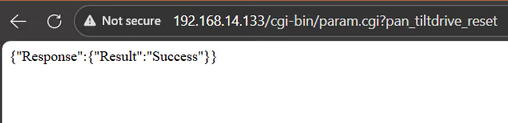
- If you’re prompted for credentials, enter the camera's admin credentials. If you receive a 401 authentication error, the credentials used were incorrect.
Clearing Pan/Tilt Limits Using the IR Remote
- Aim the remote at the camera and press the "P/T RST" button to clear the camera's pan/tilt limits. The camera will pan/tilt to recalibrate when the command is received.
Note: This command will not work on the Move 4K or Link 4K. The camera will move through its calibration motion, but the limits will not clear. Use the On-Screen Display Menu or, on Move 4K/Link 4K, the Clear button in Horizon's P/T Limit Wizard instead.