Controller Settings
Open Settings to configure controller-level options. These settings affect the MiniJoy, not an individual camera.
Network
| Setting | Behavior |
|---|---|
| IP Configuration Type | Select DHCP or Static |
| IP Address | Supplied automatically for DHCP; editable for Static |
| Subnet Mask | Supplied automatically for DHCP; editable for Static |
| Gateway | Supplied automatically for DHCP; editable for Static |
| DNS1 | Supplied automatically for DHCP; editable for Static |
| DNS2 | Supplied automatically for DHCP; editable for Static |
| Save | Apply the displayed network configuration |
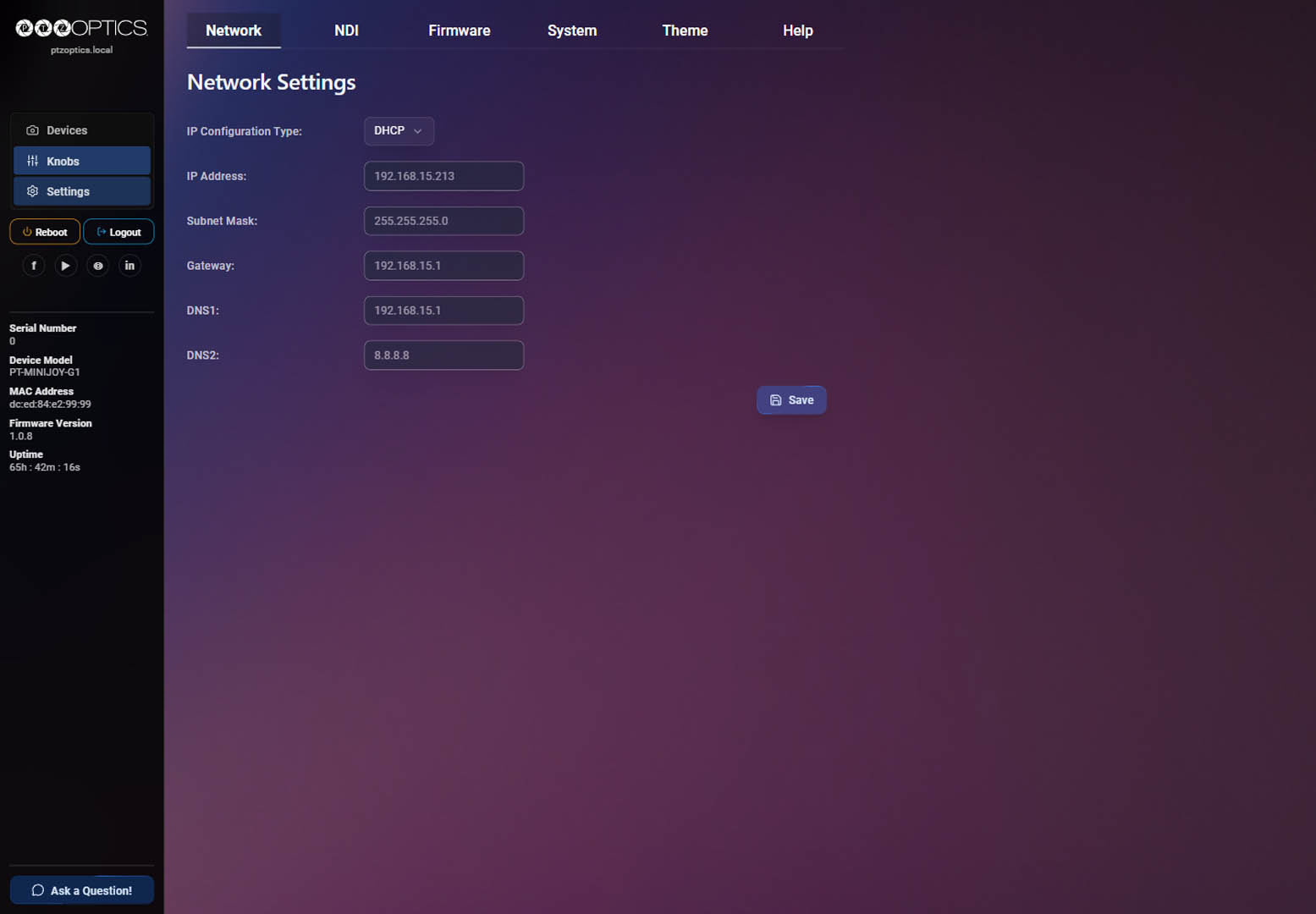
Changing network settings can disconnect the browser session. Record the new IP address before saving a static configuration.
NDI
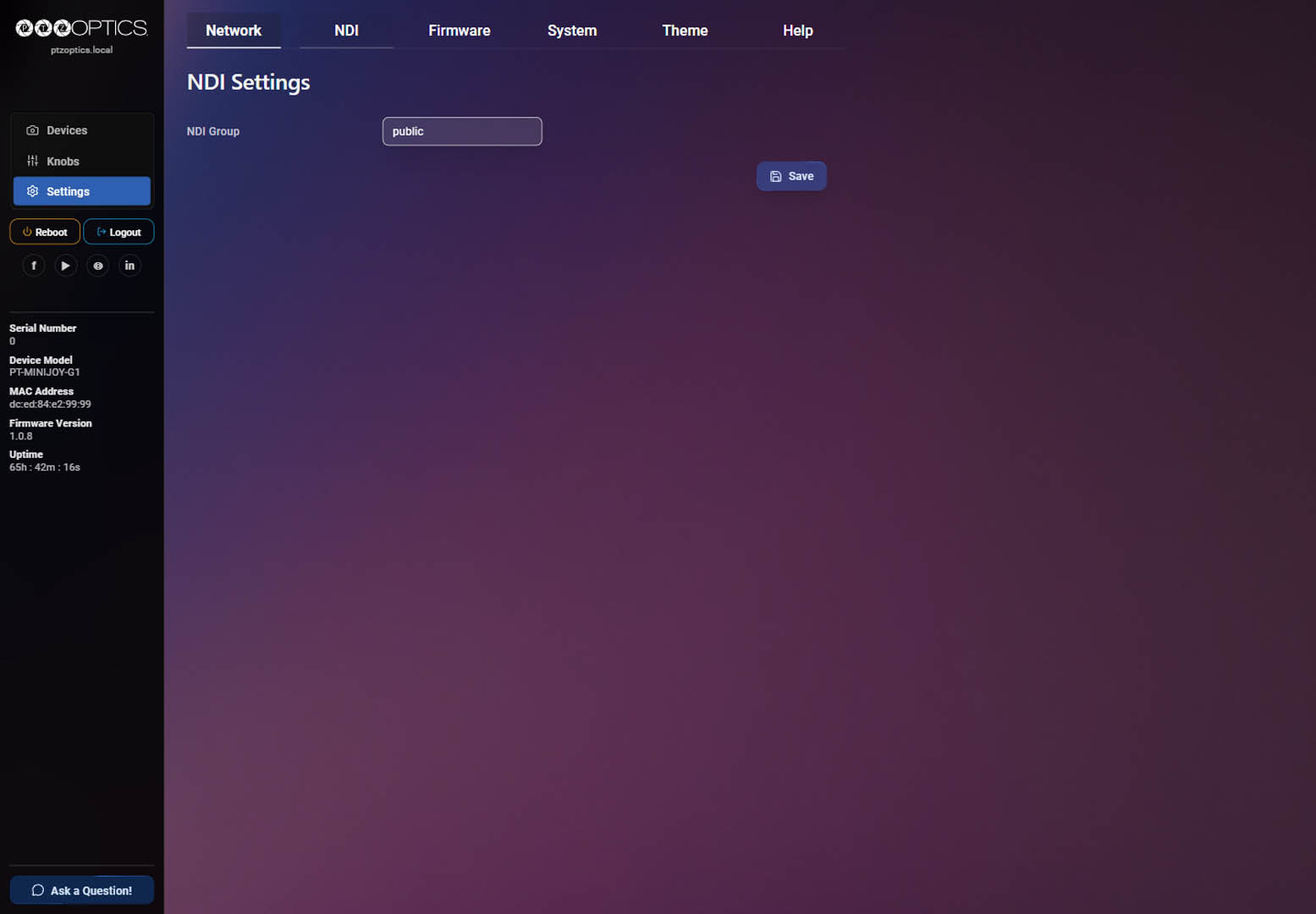
Enter the NDI group used by the MiniJoy, then select Save. The group name must exactly match
the group used by the NDI sources the MiniJoy needs to discover. The screenshot uses public as
an example; use the group required by your environment.
Firmware
The Firmware page displays the installed firmware version and update status. To install an
update, choose or drop an approved .fw file, then select Upload to device.
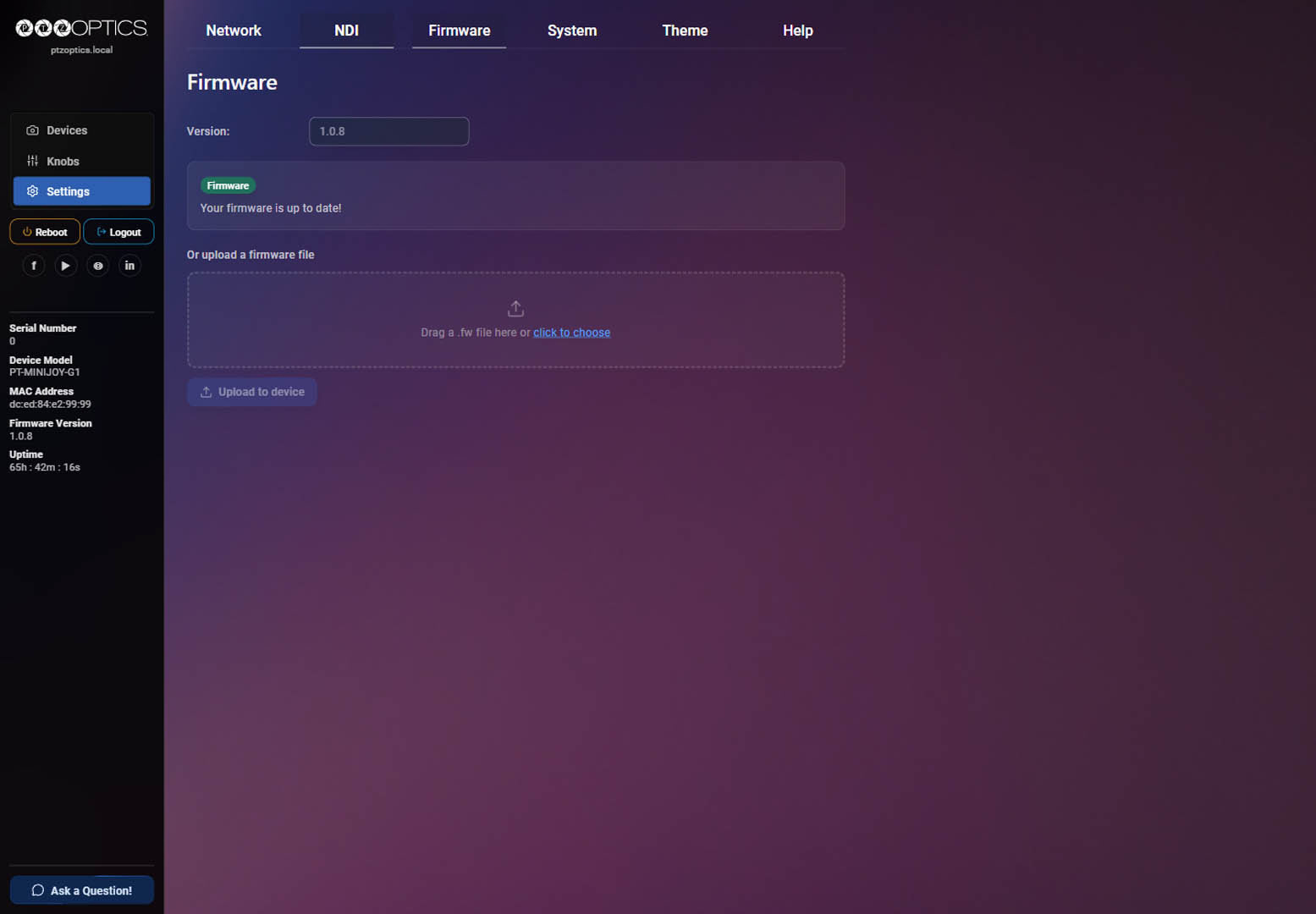
Use only firmware intended for the MiniJoy. Do not disconnect power or the network while an update is in progress.
System
Account / Change Password
Enter the current password, the new password, and the new password again, then select Change password.
Import and Export Configuration
- Select Export to download a backup of the current controller configuration.
- Choose or drop a compatible MiniJoy configuration file in the upload area to import it.
Export the current configuration before importing another file. An import can replace controller settings; after it finishes, verify the network, camera, knob, and system settings required by your workflow.
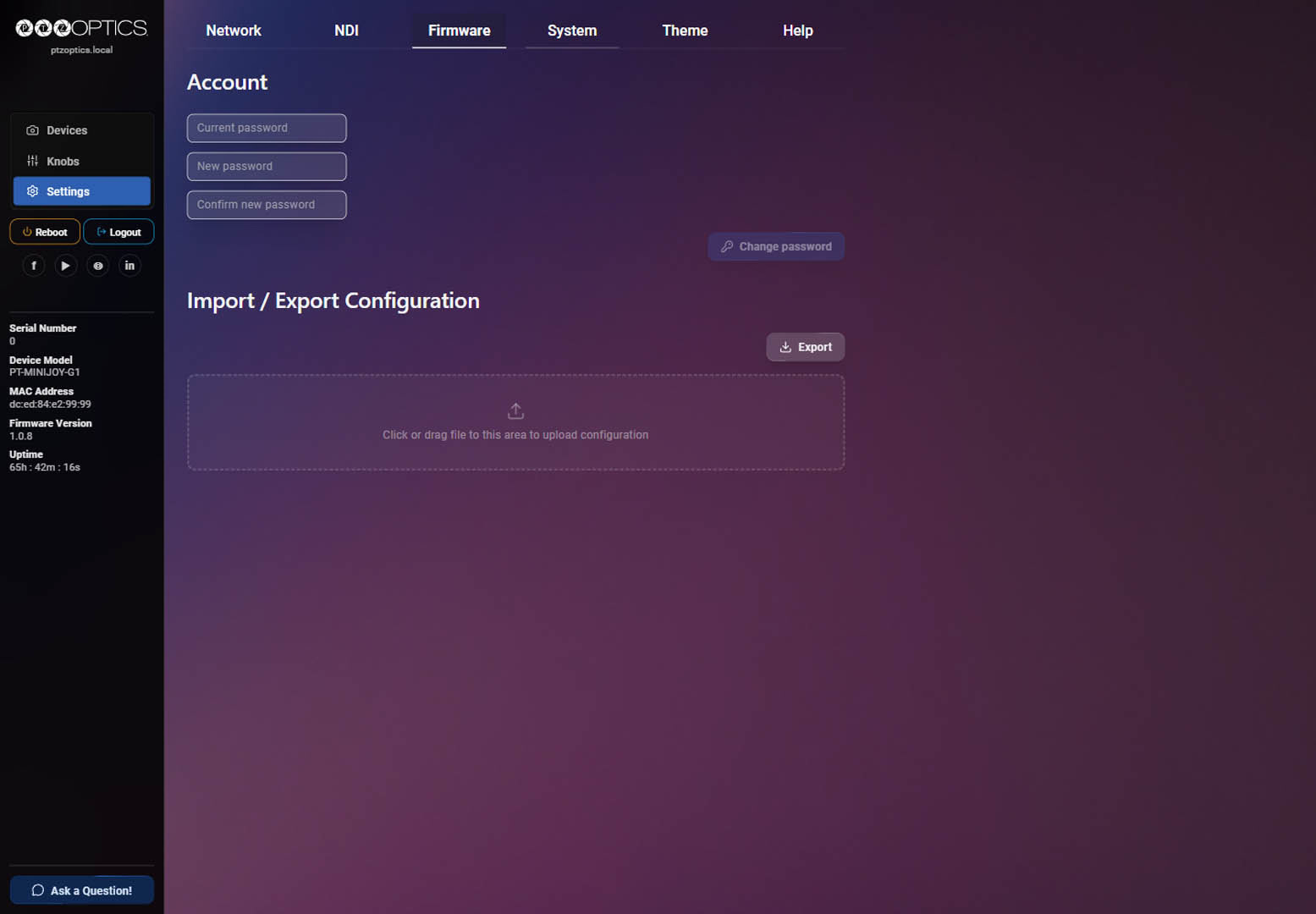
Import only a configuration intended for a compatible MiniJoy. Do not disconnect power while the configuration is being applied.
Help
| Item | Purpose |
|---|---|
| API Documentation | Open the REST API reference served by the controller |
| MiniJoy Manual | Open the PTZOptics MiniJoy documentation |
| Bugs and Feature Requests | Report a problem or product idea |
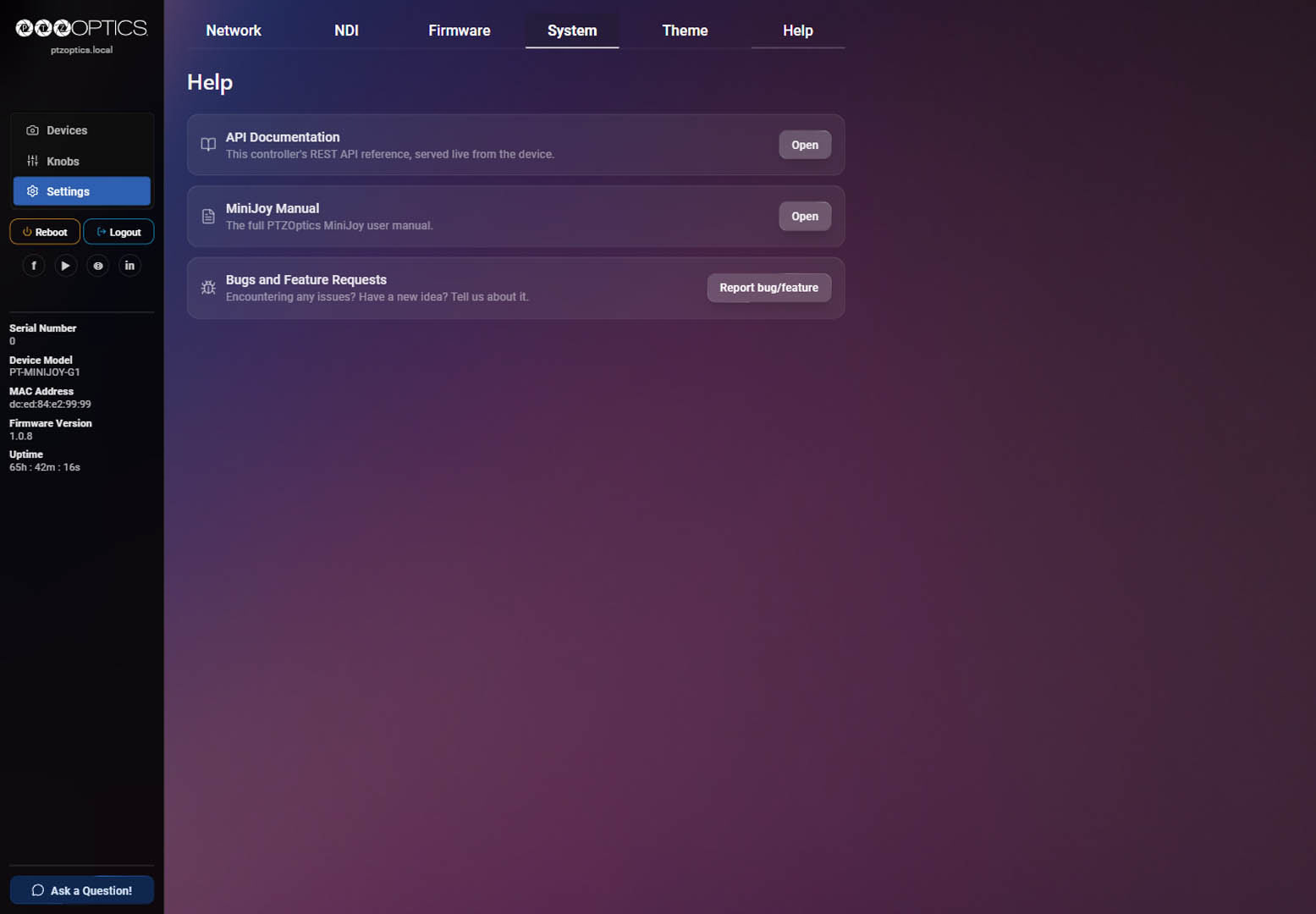
Controller Status Sidebar
The Web UI sidebar displays:
- Serial Number
- Device Model
- MAC Address
- Firmware Version
- Uptime
The sidebar also provides Reboot, Logout, PTZOptics links, and Ask a Question!.
Logout ends the current Web UI session. Reboot restarts the controller and interrupts controller operation until startup completes.