Shots, Groups, and Playlists
Every shot saves the camera's pan, tilt, and zoom position along with its current image settings; applying those saved image settings when recalling a shot is optional. Select Shots in the top header to name shots, organize them into group tabs, configure recall behavior, and build automated shot playlists.
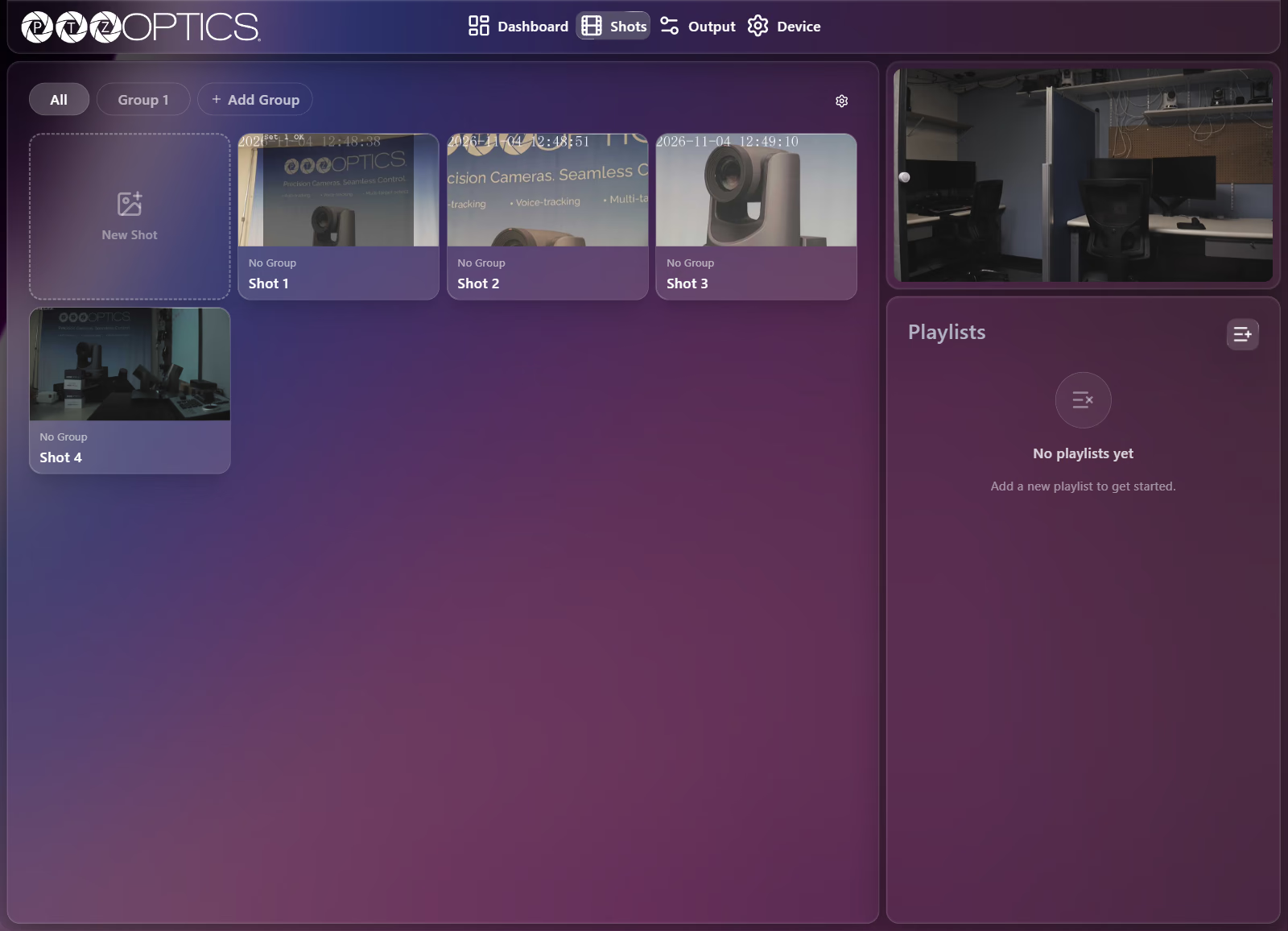
Shots Page Layout
| Area | Contents |
|---|---|
| Left workspace | Group filter tabs (All, custom group pills, Add Group), the Settings gear button, and the grid of shot cards starting with New Shot. |
| Top right | Live video preview with Point/Drag virtual joystick and Zoom controls, letting you position a new shot without returning to the Dashboard. |
| Bottom right | Playlists panel (replaced by the Settings panel while Settings is open). |
Save and Recall a Shot
Position your desired camera view first using the live preview on the Shots page or the controls on the Dashboard.
From the Dashboard Shots Strip
Use the shots strip along the bottom of the Dashboard when you want to capture the current view quickly as a thumbnail:
- On the Dashboard, select New Shot in the bottom shots strip. Horizon saves the current camera position and image settings immediately. By default, shots are named
Shot #, where#is the next available shot number—for example, if you have five shots namedMidfield Wide,Home Bench,Visitor Bench,South Pylon, andTunnel Entrance, the next shot saved is namedShot 6rather thanShot 1. Shot names appear on the Shots page rather than on the Dashboard thumbnails. - Select the built-in Home card (house icon) next to New Shot to return to the home position, or select any shot thumbnail in the strip (filtered by All or a group tab) to recall that saved shot.
From the Shots Page
Use the Shots page when you want to give the shot a custom name or assign it to a group as you save it:
- Select Shots in the top header, then select the New Shot card.
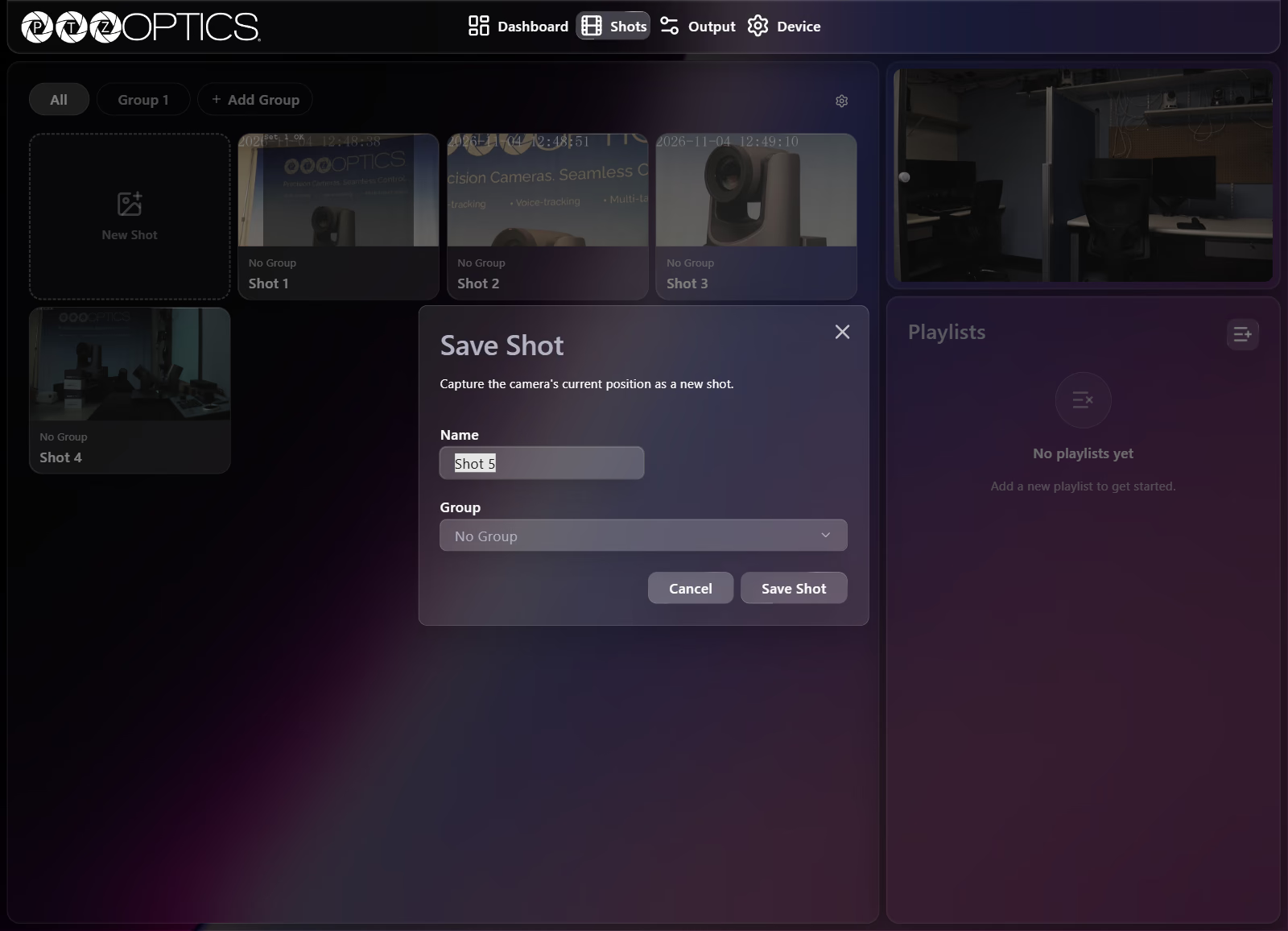
- In the Save Shot dialog (
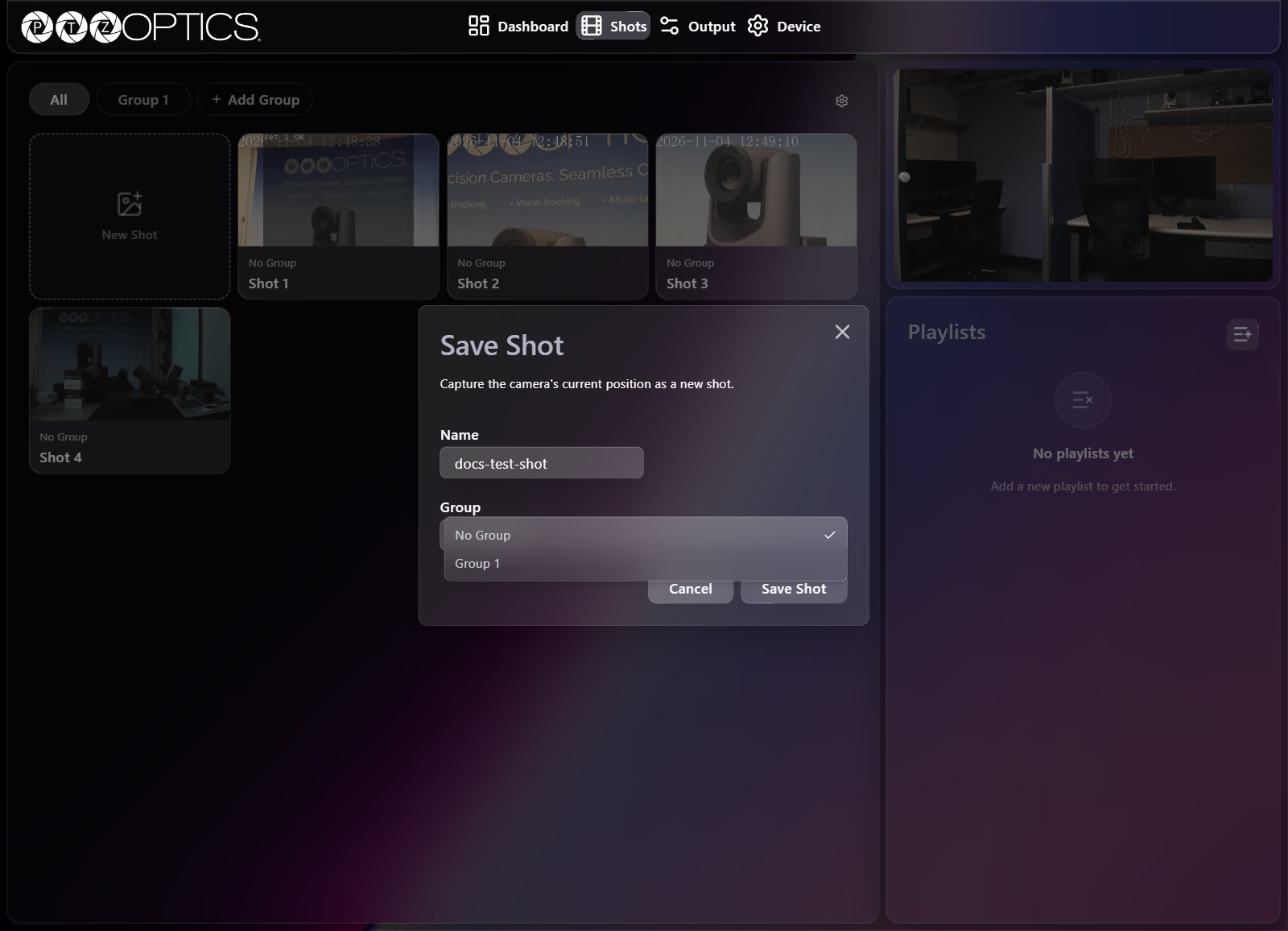
"Capture the camera's current position as a new shot."), enter a Name (pre-filled asShot #, where#is the next available shot number). - Choose No Group or an existing group from the Group dropdown.
- Select Save Shot. The new card appears with a thumbnail captured from the current view.
Select any shot card on the Shots page (while Settings is closed) or in the Dashboard shots strip to recall it.
Organize Shots with Groups
Groups let you filter shots by production, scene, or speaker both on the Shots page and in the Dashboard shots strip:
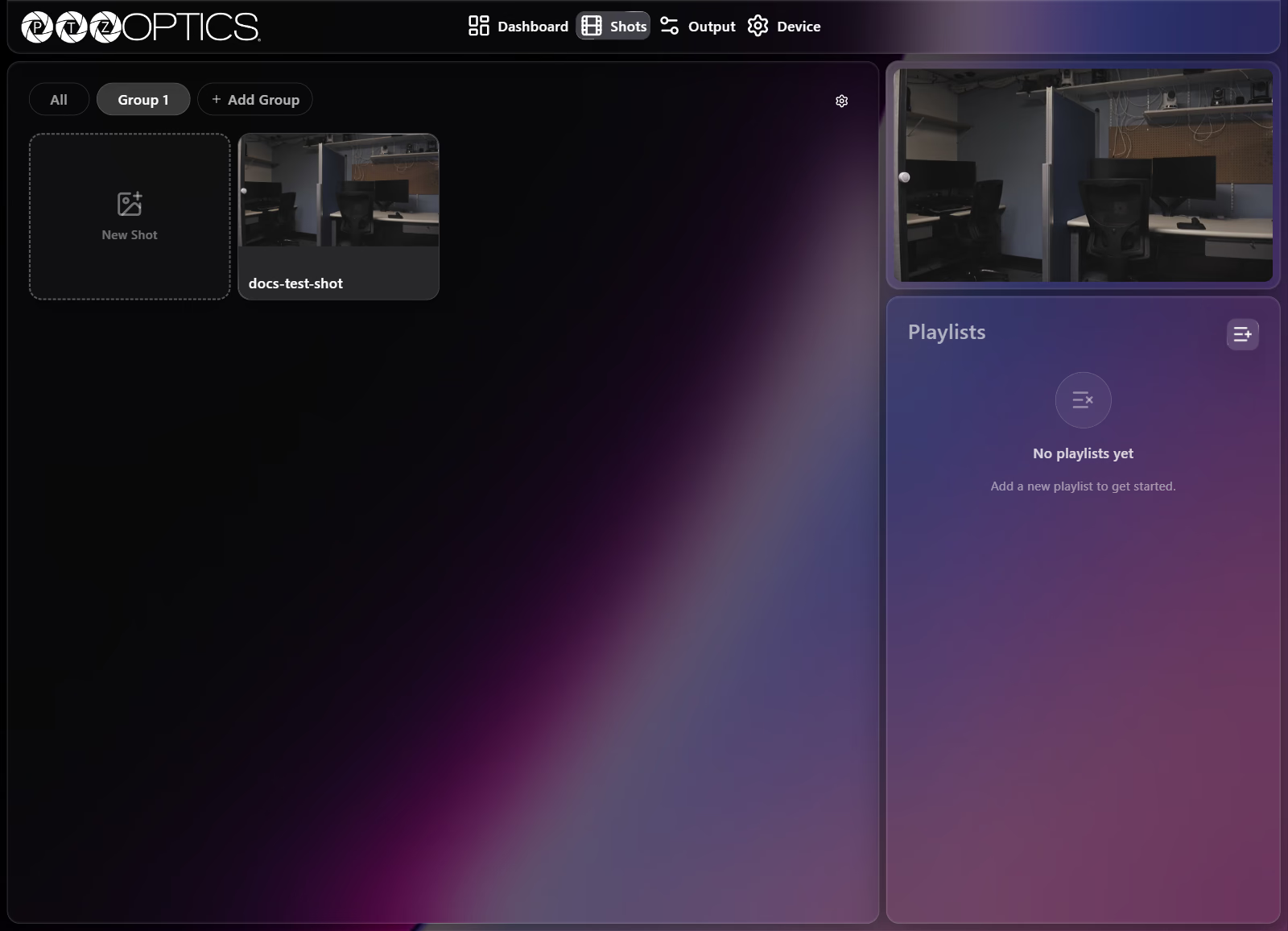
- On the Shots page, select Add Group beside the All tab. Horizon immediately creates a pill named Group 1 (empty groups display
"No shots yet"). - Assign shots to the group either when saving a new shot (via the Group dropdown in Save Shot) or later by opening Settings (the gear button) and changing the group dropdown on any existing shot card.
Shot Settings and Deleting Shots or Groups
Select the gear button to the right of the group tabs to open the Settings panel. While Settings is open, a banner notes "Shots can't be recalled while settings are open." Close Settings with X to return to normal recall mode.
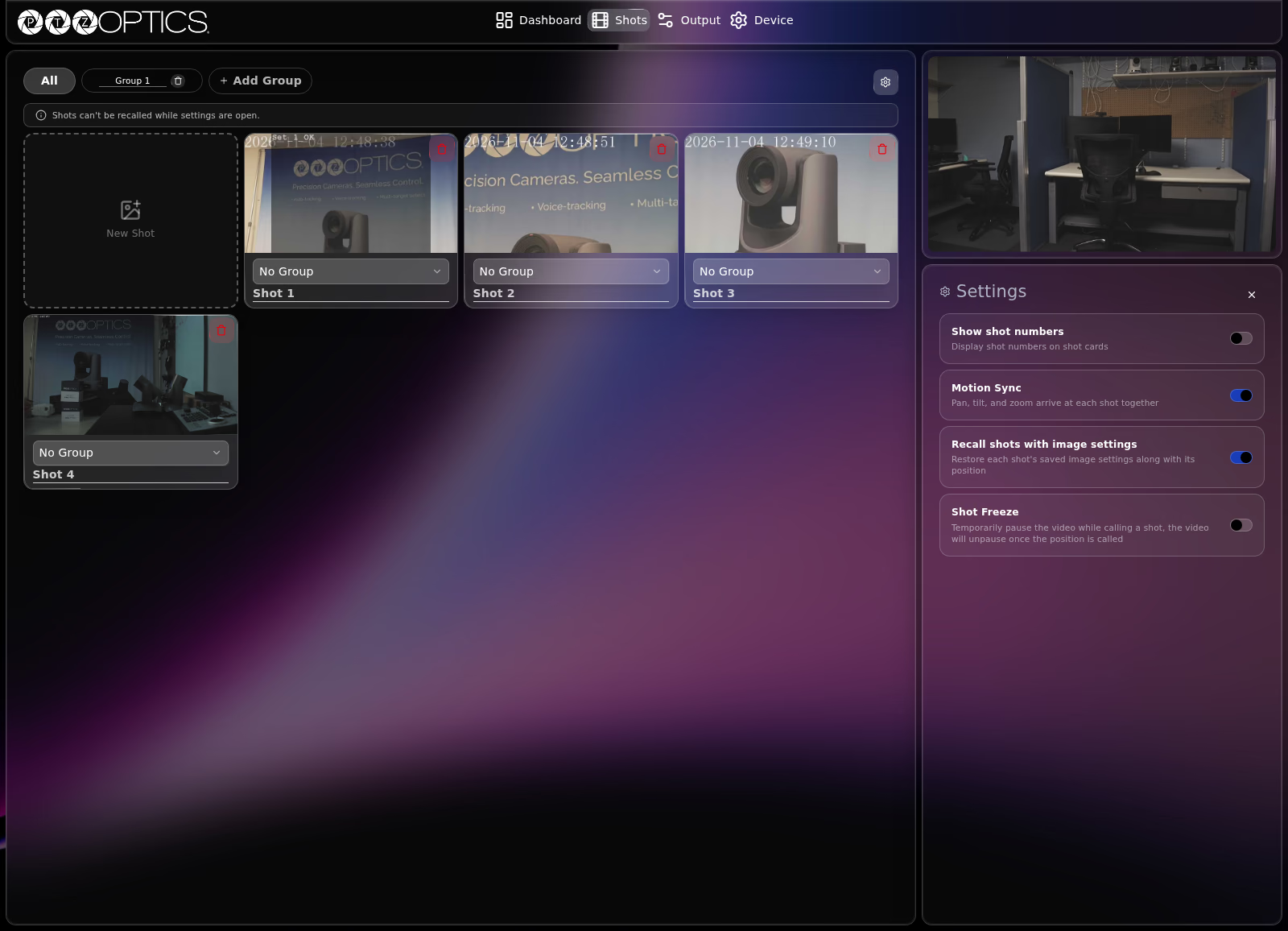
| Setting or Control | Behavior |
|---|---|
| Show shot numbers | Displays each shot's underlying camera preset number on its card (and in the Dashboard shots strip). Shot numbers match the camera's underlying preset slots rather than sequential visual order—for example, deleting preset 2 leaves a gap at 2 while preset 3 remains 3. |
| Motion Sync | Synchronizes pan, tilt, and zoom speeds so all three axes finish arriving at the recalled shot simultaneously. |
| Recall shots with image settings | Restores the image settings saved with each shot alongside its pan, tilt, and zoom position. When Off, recalling a shot restores only its position while keeping your current live image settings. |
| Shot Freeze | Temporarily pauses the video feed while recalling a shot, then unpauses once the camera reaches the saved position. |
| Editable shot and group names | While Settings is open, rename any shot directly on its card, change its group assignment, or rename any custom group pill. |
| Trash icon | Deletes a shot or custom group. The trash icon is red on each shot card and white inside each custom group pill. |
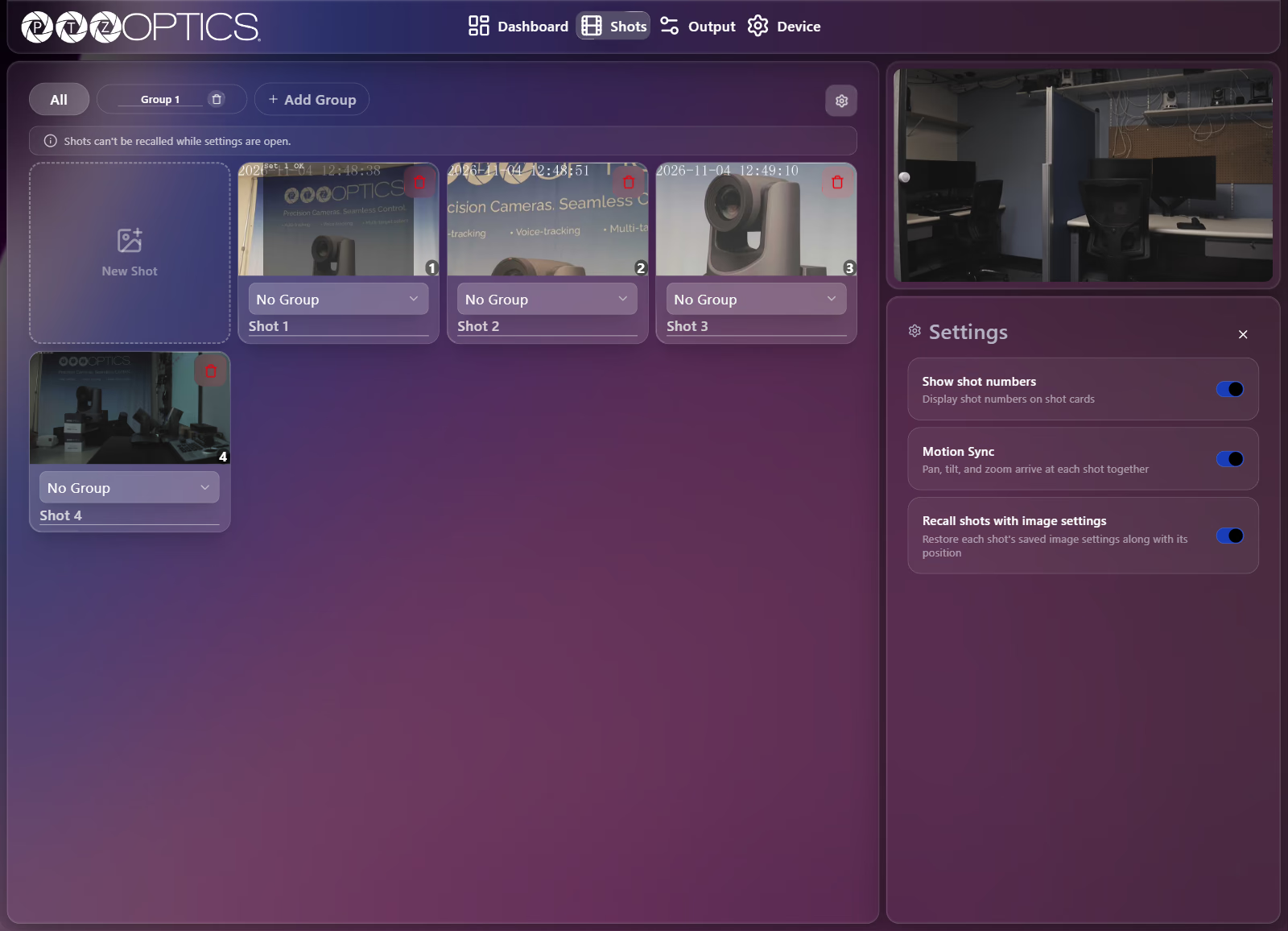
Selecting the trash icon on a shot card or group pill deletes it immediately without a confirmation dialog.
Playlists
Playlists step through an ordered sequence of saved shots automatically. Select the + button at the top right of the Playlists panel to create a playlist and open the playlist editor.
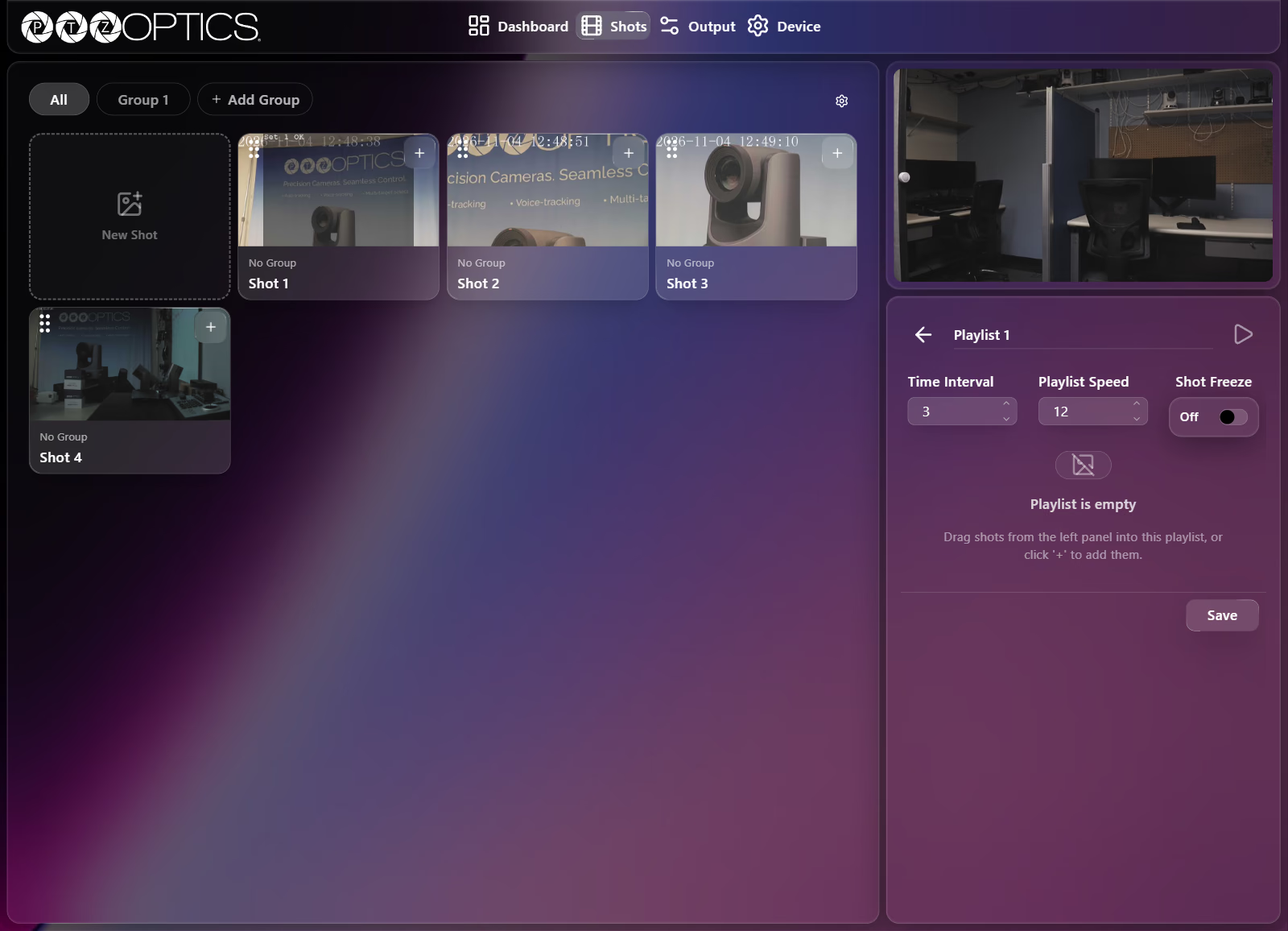
| Control | Range or Behavior |
|---|---|
| Back arrow | Exits the playlist editor and returns to the Playlists list. |
| Playlist name | Editable title for the playlist. |
| Play button | Starts or stops running the playlist (disabled while the playlist has no shots). |
| Time Interval | 0 to 60 (dwell time between shots in seconds). |
| Playlist Speed | 1 to 24 (camera movement speed between shots in the playlist). |
| Playlist Shot Freeze | Switch (On, Off). Freezes the video feed momentarily during movement between playlist shots so transitions are hidden until the camera settles. |
| Adding and ordering shots | Drag shot cards from the left grid into the playlist or select + on any shot card. Drag items by their grip handle or open the three-dot Shot options menu on an item (Move up, Move down, or delete) to reorder or remove shots. |
| Save | Saves the playlist configuration. |