Dashboard
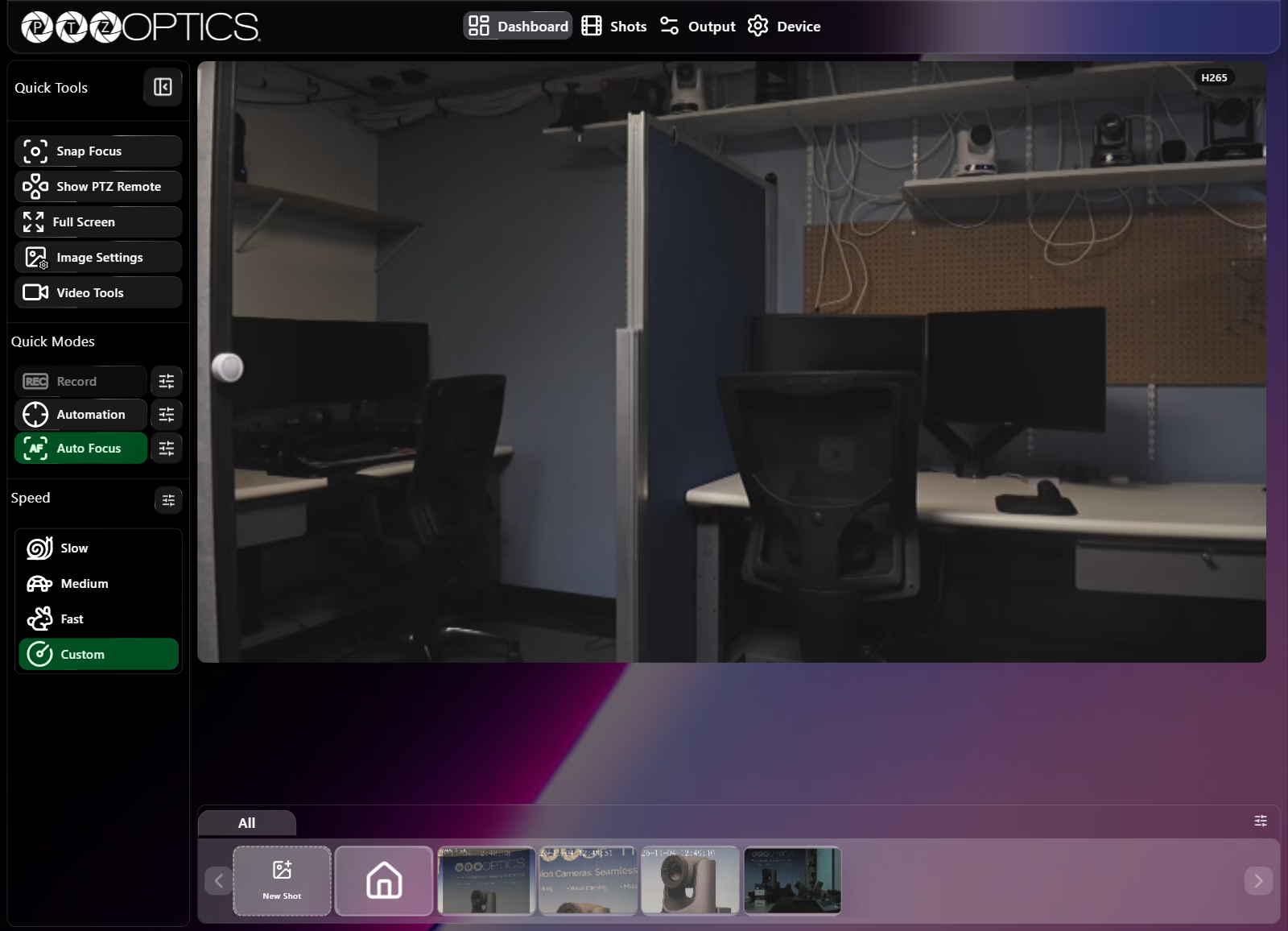
The Dashboard is the live operator workspace in the Horizon Web UI. It pairs the low-latency video preview with one-click camera controls, slide-out tuning drawers, and the shots strip.
Workspace Layout
| Area | Contents |
|---|---|
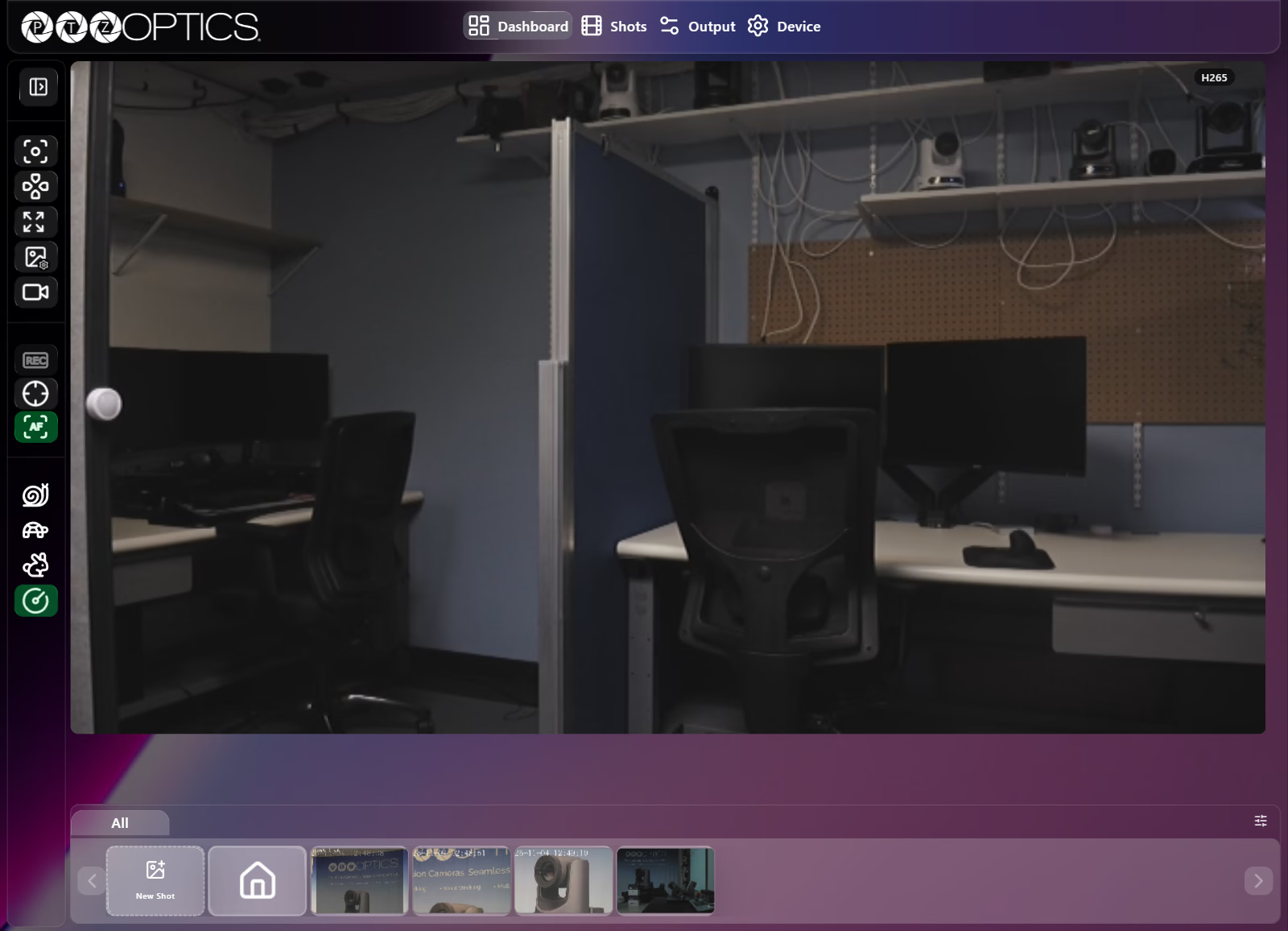
| Left sidebar | Quick Tools, Quick Modes, and Speed presets. Select the chevron at the top (Toggle sidebar) to collapse the sidebar into an icon strip. |
| Center preview | Live video feed supporting direct Point/Drag virtual joystick or Framing control and an on-preview Zoom slider along the left edge. When the preview first loads or changes codec/transport, a format badge (such as H264, H265, or Snapshot) appears at the top right for about 10 seconds before fading out. |
| Right drawer | Opens beside the video when you select Image Settings, Video Tools, or the Open speed settings sliders button. The video preview resizes automatically so nothing is covered. |
| Bottom strip | The shots strip for saving a quick shot, returning to the built-in home position, or recalling saved shots by group. |
Quick Tools
The Quick Tools group in the left sidebar lists five live-operation controls in order:
| Button | Behavior |
|---|---|
| Snap Focus | Triggers an immediate one-shot autofocus adjustment on the current view. |
| Show PTZ Remote / Hide PTZ Remote | Displays or hides the draggable on-screen directional remote over the live video; see PTZ Remote and Speed Settings. |
| Full Screen | Expands the live video preview to fill the screen; press Esc or select the control again to exit. |
| Image Settings | Opens or closes the picture, exposure, white balance, and orientation drawer; see Image Settings. |
| Video Tools | Opens or closes the preview control mode, composition grid, stream selector, and pan/tilt limit drawer; see Video Tools. |
Quick Modes
Each item in Quick Modes pairs an instant toggle button (highlighted green while active) with a sliders shortcut button beside it that opens that feature's full configuration tab:
| Mode | Toggle Behavior | Sliders Shortcut Opens |
|---|---|---|
Record (REC) | Starts or stops recording to a mounted SD card. Disabled when no SD card is mounted. | Device: Recording |
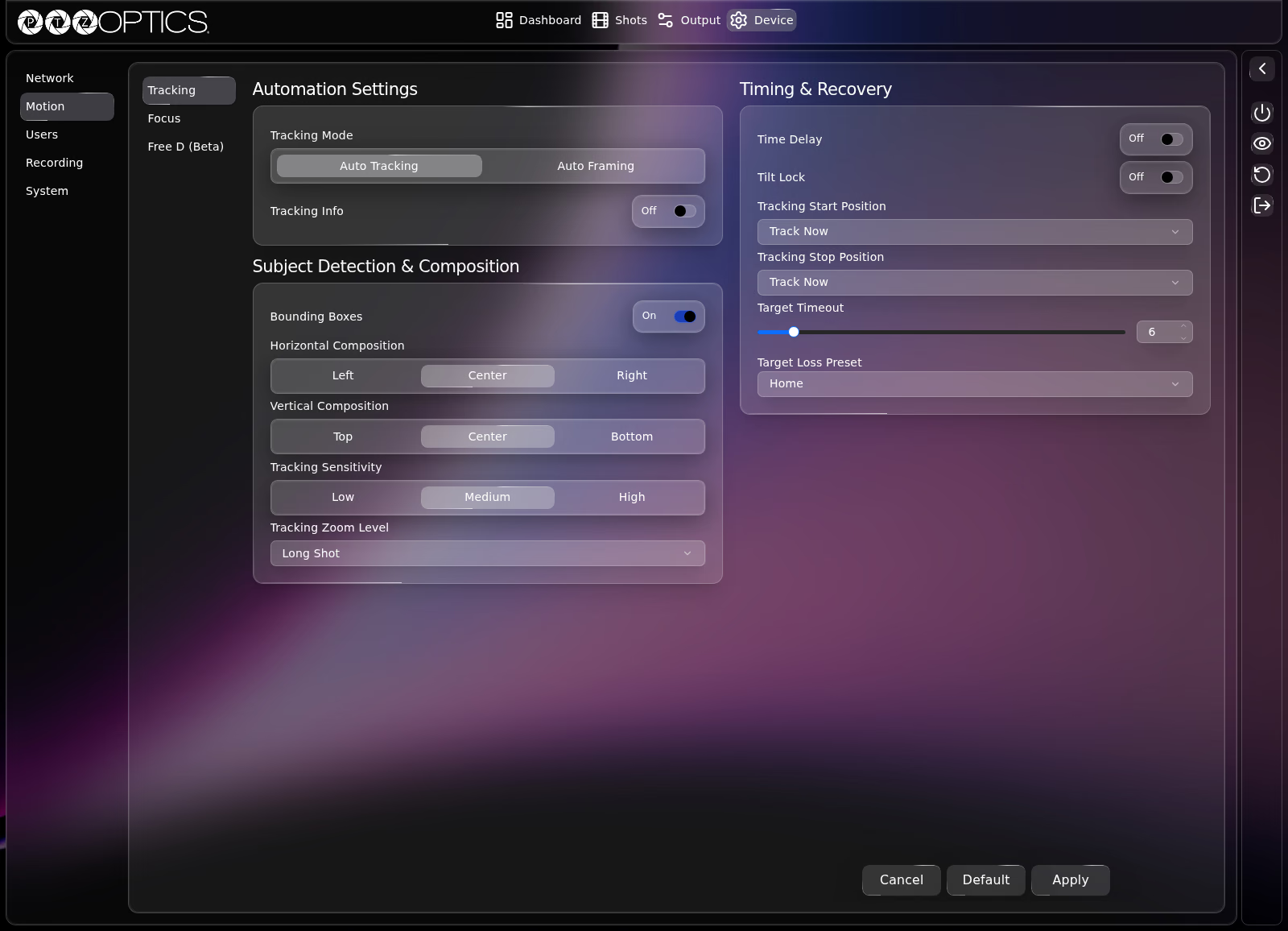
| Automation | Turns automatic subject tracking or auto-framing on or off. | Device: Motion (Tracking tab) |
Auto Focus (AF) | Switches between automatic focus (green) and manual focus. | Device: Motion (Focus tab) |
While Automation is enabled:
- The Automation button turns green and an Auto Tracking (or Auto Framing) status indicator with a green dot appears in the top-left corner of the video preview.
- Manual movement controls (the PTZ Remote and the Shots strip) are dimmed so automated tracking is not interrupted accidentally.
- If Bounding Boxes is toggled
Onin Device: Motion, detected subjects appear boxed on the preview (with a Targets tab in the shots strip) so you can select a tracking target.
Speed Presets
The Speed section in the left sidebar provides Slow, Medium, and Fast preset buttons plus a sliders button (Open speed settings) that opens the Speed Settings drawer on the right. In a narrow window, the preset controls collapse into a single Speed button. For speed ranges, templates, and acceleration sliders, see PTZ Remote and Speed Settings.
Shots Strip
The strip along the bottom of the Dashboard gives you one-click access to saved camera positions without leaving the live view:
| Control | Behavior |
|---|---|
| Group tabs (All and custom groups) | Filters the strip to show every shot (All) or only shots in a selected group. |
| New Shot card | Captures the current camera position and image settings immediately as a new thumbnail. By default, shots are named Shot # (where # is the next available shot number); shot names are displayed on the Shots page rather than on Dashboard thumbnails. |
| Home card | Built-in house icon card next to New Shot that moves the camera to its home position. |
| Shot thumbnails | Recalls that saved shot when selected. |
| Previous slide / Next slide arrows | Scrolls horizontally through the strip when shots overflow the width of the window. |
| Sliders icon (right of group tabs) | Opens Shots, Groups, and Playlists to view or edit shot names, manage groups, adjust shot recall settings, or build playlists. |