PTZ Remote and Speed Settings
The PTZ Remote and Speed controls on the Dashboard let you pan, tilt, zoom, focus, and tune how quickly the camera accelerates and moves. You can also steer the camera directly on the video canvas using Point/Drag or Framing mode in Video Tools.
Pressing a direction arrow or Home moves the physical camera head right away. Verify that the camera head has unobstructed clearance before moving it.
On-Screen PTZ Remote
Select Show PTZ Remote under Quick Tools on the Dashboard to display the floating remote over the lower-left corner of the video preview. Select Hide PTZ Remote to close it.
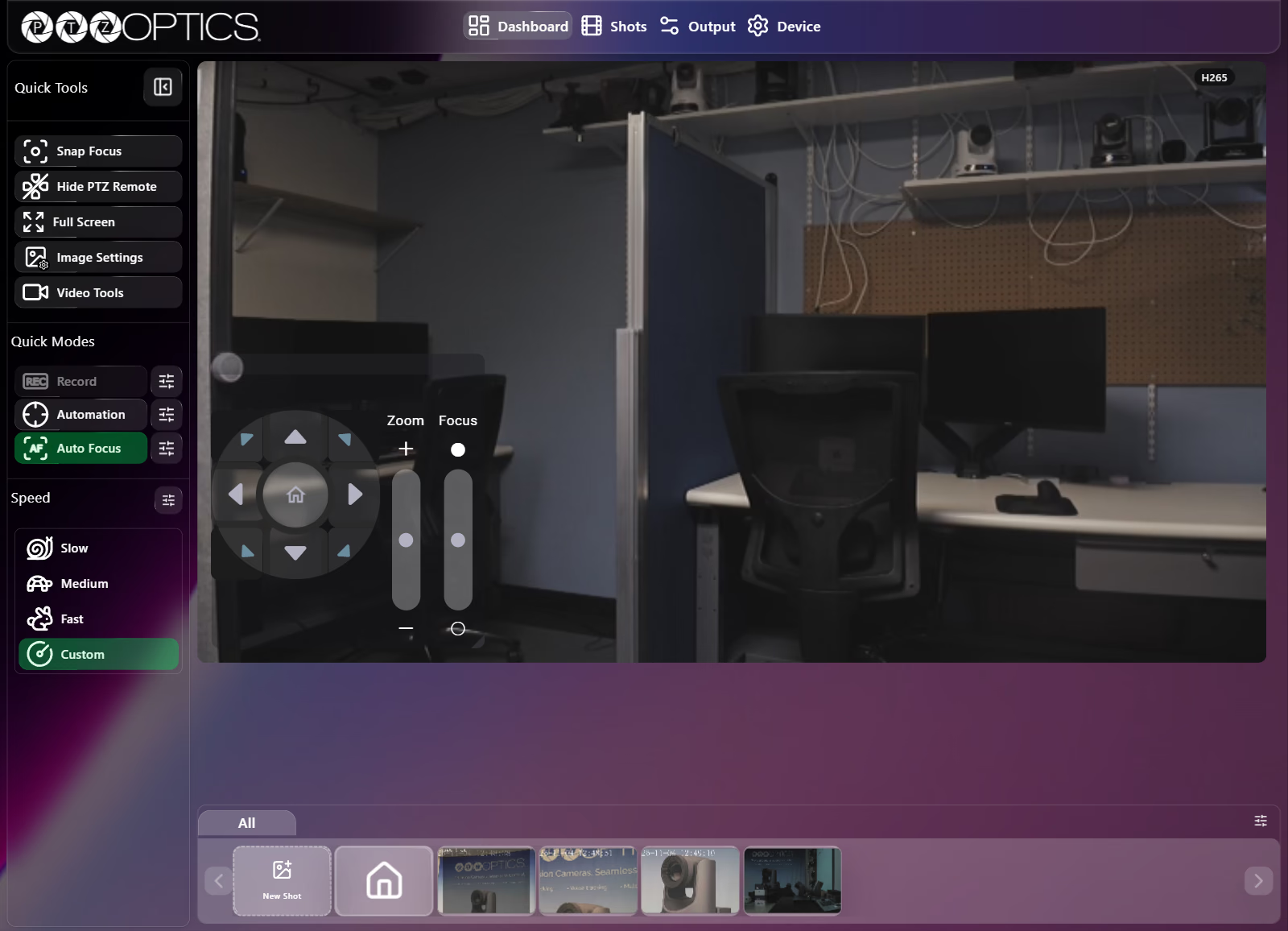
| Control | Behavior |
|---|---|
| Eight direction arrows | Up, down, left, right, and four diagonal arrows. Press briefly for fine adjustments, or press and hold for continuous movement at the active pan/tilt speed. |
| Center Home button | Returns the camera to its home position. |
| Zoom slider | Spring-centered vertical rocker. Drag upward toward + to zoom in or downward toward − to zoom out; releasing returns the slider to 0. |
| Focus slider | Spring-centered vertical rocker with near/far focus indicators. Adjusting manual focus switches focus control as needed. |
| Drag handle (remote background) | Hover over the dark background of the overlay until the move cursor appears, then click and drag the PTZ Remote anywhere over the video preview. |
While Automation is turned on in Quick Modes, the PTZ Remote appears dimmed.
Speed Presets
In the Speed group of the Dashboard sidebar, Slow, Medium, and Fast load the corresponding speed template values into the camera's active Live speeds immediately. Whenever you adjust an individual Live slider in the Speed Settings drawer so the live values no longer match a template, no template preset stays highlighted until a template matches again.
Select Apply on a template card in the Speed Settings drawer to save edited template speeds and activate that template.
Selecting Slow, Medium, or Fast overwrites your custom live speeds. Horizon does not store previous custom values in a separate slot, so re-enter custom values in the Speed Settings drawer when needed.
Speed Settings Drawer
Select the sliders icon (Open speed settings) beside Speed in the Dashboard sidebar to open the Speed Settings drawer on the right.
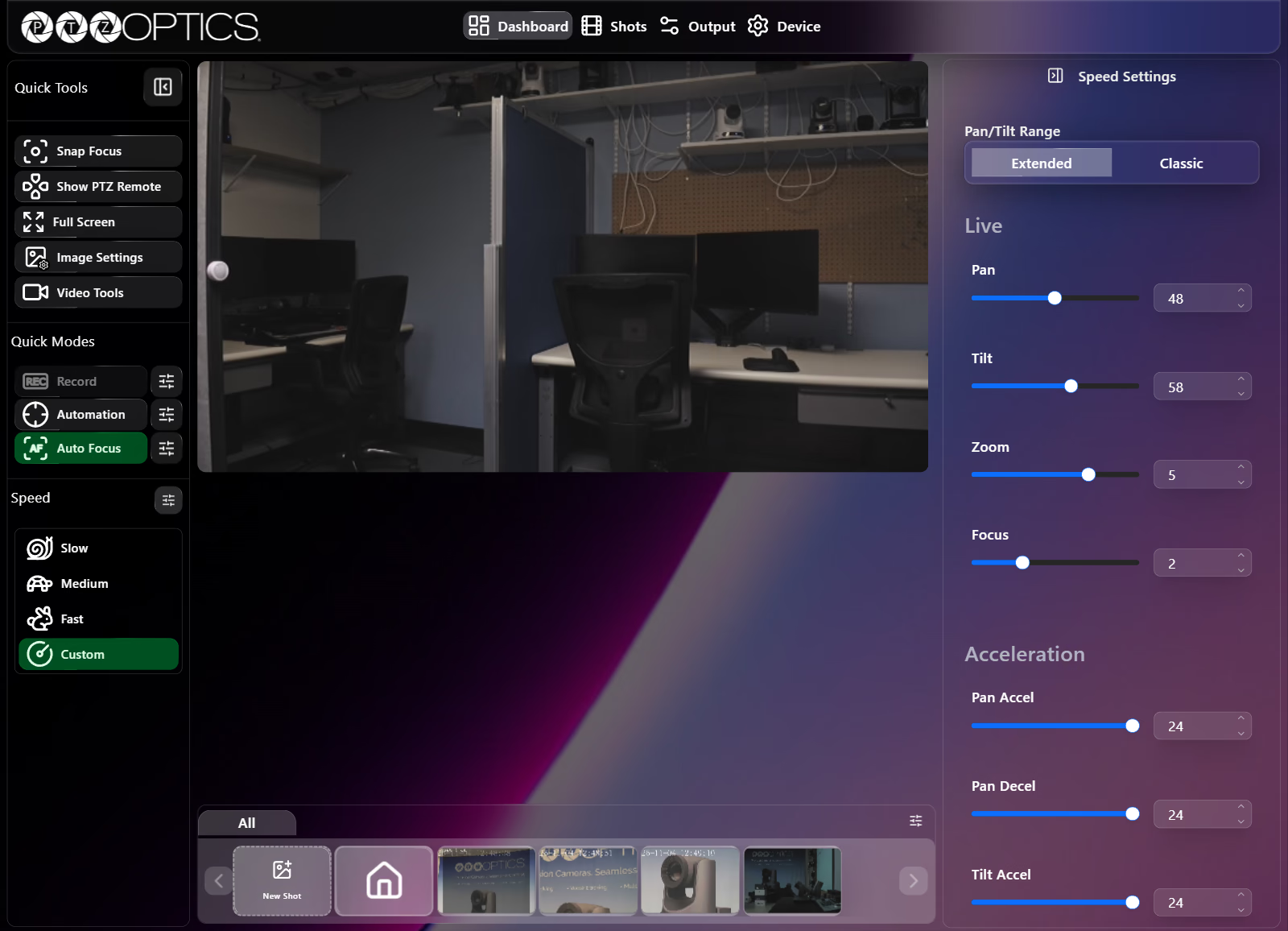
Pan/Tilt Range
Segmented buttons switch the speed scale between Extended (supporting fine-grained pan and tilt speeds up to 96) and Classic (supporting pan speeds up to 24 and tilt speeds up to 20).
Live Speeds
Changes to Live sliders and number fields apply immediately without an Apply button (select Default beside Live to restore default live speeds):
| Control | Extended Range | Classic Range | Description |
|---|---|---|---|
| Pan | 1 to 96 | 1 to 24 | Active horizontal movement speed. |
| Tilt | 1 to 96 | 1 to 20 | Active vertical movement speed. |
| Zoom | 0 to 7 | 0 to 7 | Active zoom rocker speed. |
| Focus | 0 to 7 | 0 to 7 | Active manual focus rocker speed. |
Acceleration
Four sliders with number fields set how smoothly the camera ramps up to speed when movement starts and ramps down when movement stops (changes apply immediately):
| Control | Range | Description |
|---|---|---|
| Pan Accel | 1 to 24 | Horizontal acceleration ramp when pan starts. |
| Pan Decel | 1 to 24 | Horizontal deceleration ramp when pan stops. |
| Tilt Accel | 1 to 24 | Vertical acceleration ramp when tilt starts. |
| Tilt Decel | 1 to 24 | Vertical deceleration ramp when tilt stops. |
Speed Templates
Below Acceleration, three customizable template cards (Slow, Medium, and Fast) define the Pan, Tilt, Zoom, and Focus speeds loaded when you select a preset button on the Dashboard.
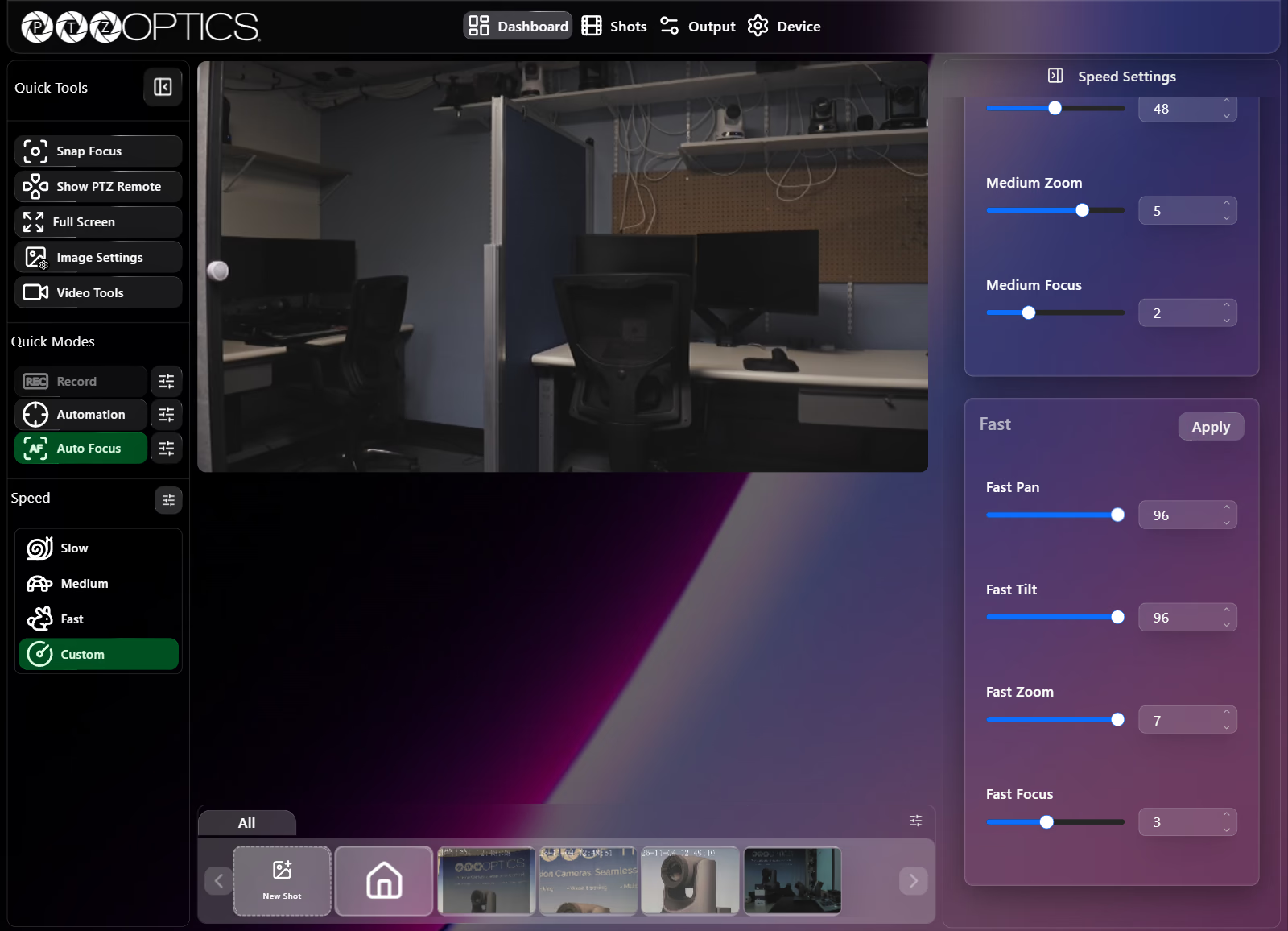
Each template card uses the same min/max ranges as the Live controls for the selected Pan/Tilt Range (Extended or Classic) and includes its own Default button to restore factory template values plus an Apply button (shown as Active when that template currently matches the live speeds).