Device: Device Sidebar
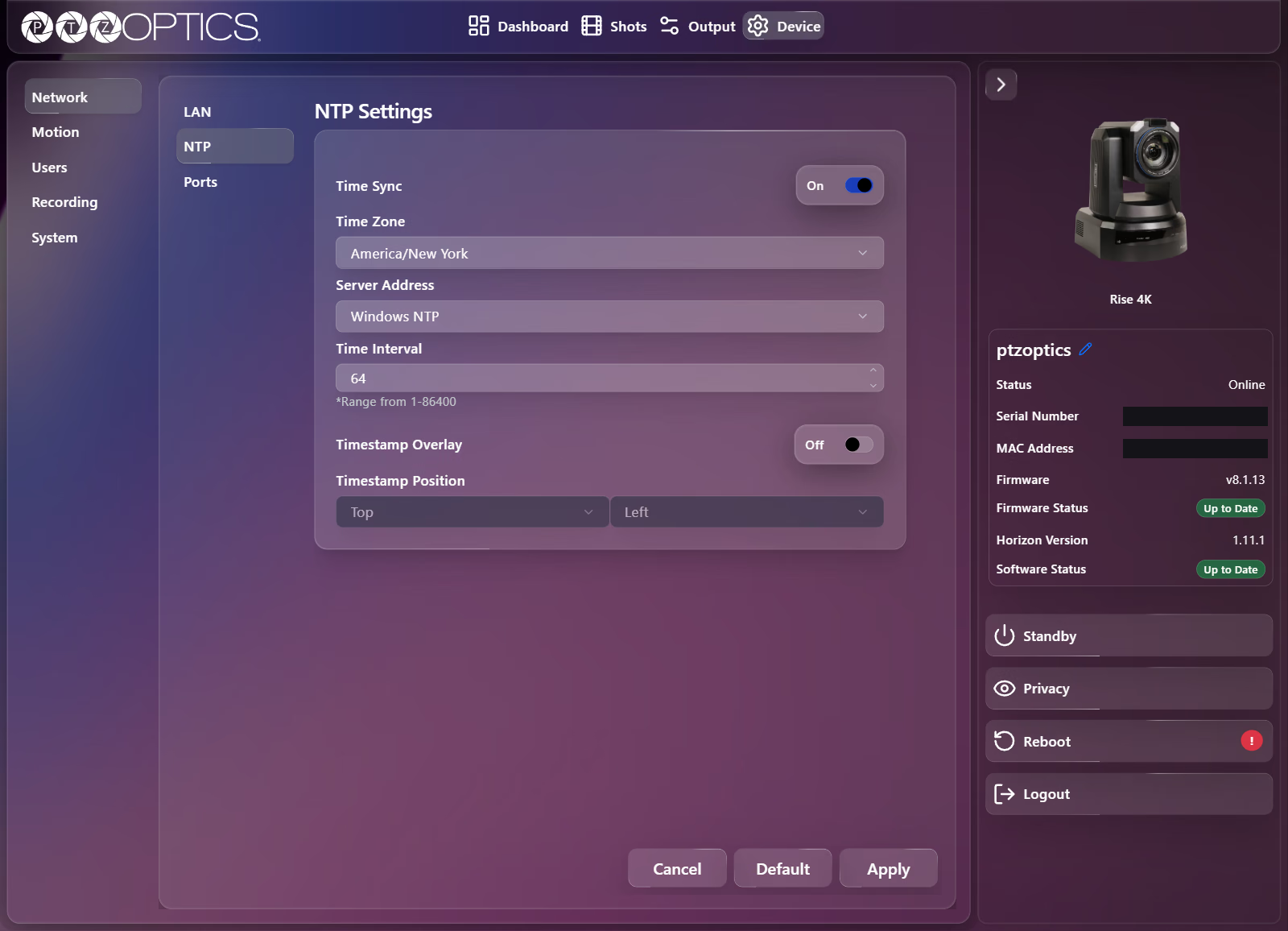
On all Output and Device pages, a collapsible status and power panel sits along the far-right edge of the Horizon Web UI. Select the chevron at its top (Toggle device sidebar) to switch between a compact icon strip and the expanded panel.
Status and Version Indicators
| Item | Description |
|---|---|
| Product image and device name | Displays Rise 4K and the configured Device ID. Selecting the pencil icon (Edit Device ID) opens Device: System (Settings tab). |
| Status | Current connection state, such as Online, Standby Mode, or Privacy Mode. |
| Serial Number and MAC Address | Read-only hardware identifiers for the camera. |
| Firmware and Firmware Status | Installed camera firmware version and status badge (Up to Date or Out of Date). |
| Horizon Version and Software Status | Installed Horizon Web UI version and status badge (Up to Date or Out of Date). |
Standby, Privacy, Reboot, and Logout
| Button | Behavior |
|---|---|
| Standby | Toggles camera standby mode. Exiting standby displays an Exiting standby... dialog and unlocks controls once the camera responds. |
| Privacy | Toggles camera privacy mode on or off. |
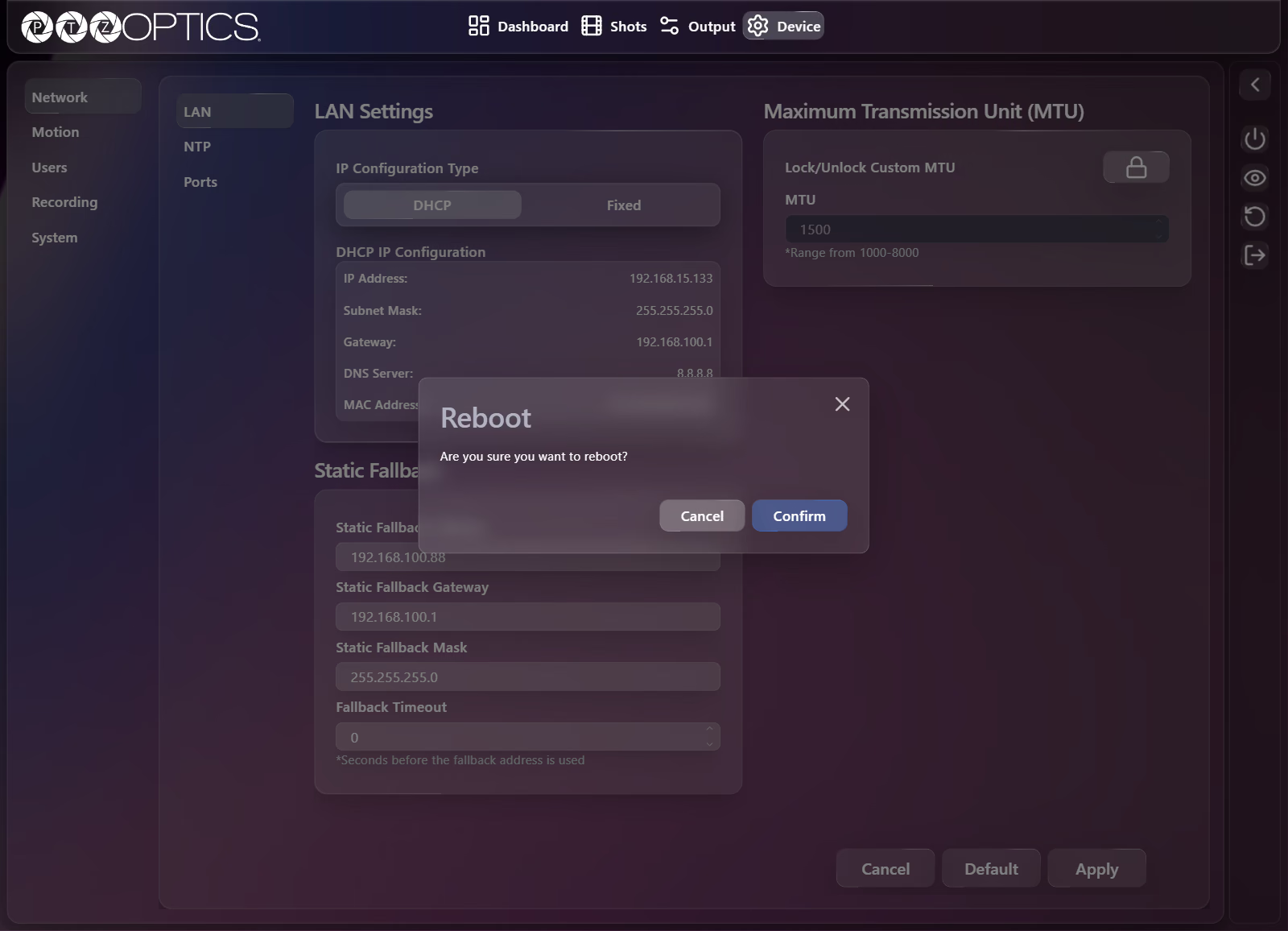
| Reboot | Opens a Reboot confirmation dialog ("Are you sure you want to reboot?") with Cancel and Confirm buttons. When a setting change requires a restart, an exclamation badge (!) appears beside Reboot. |
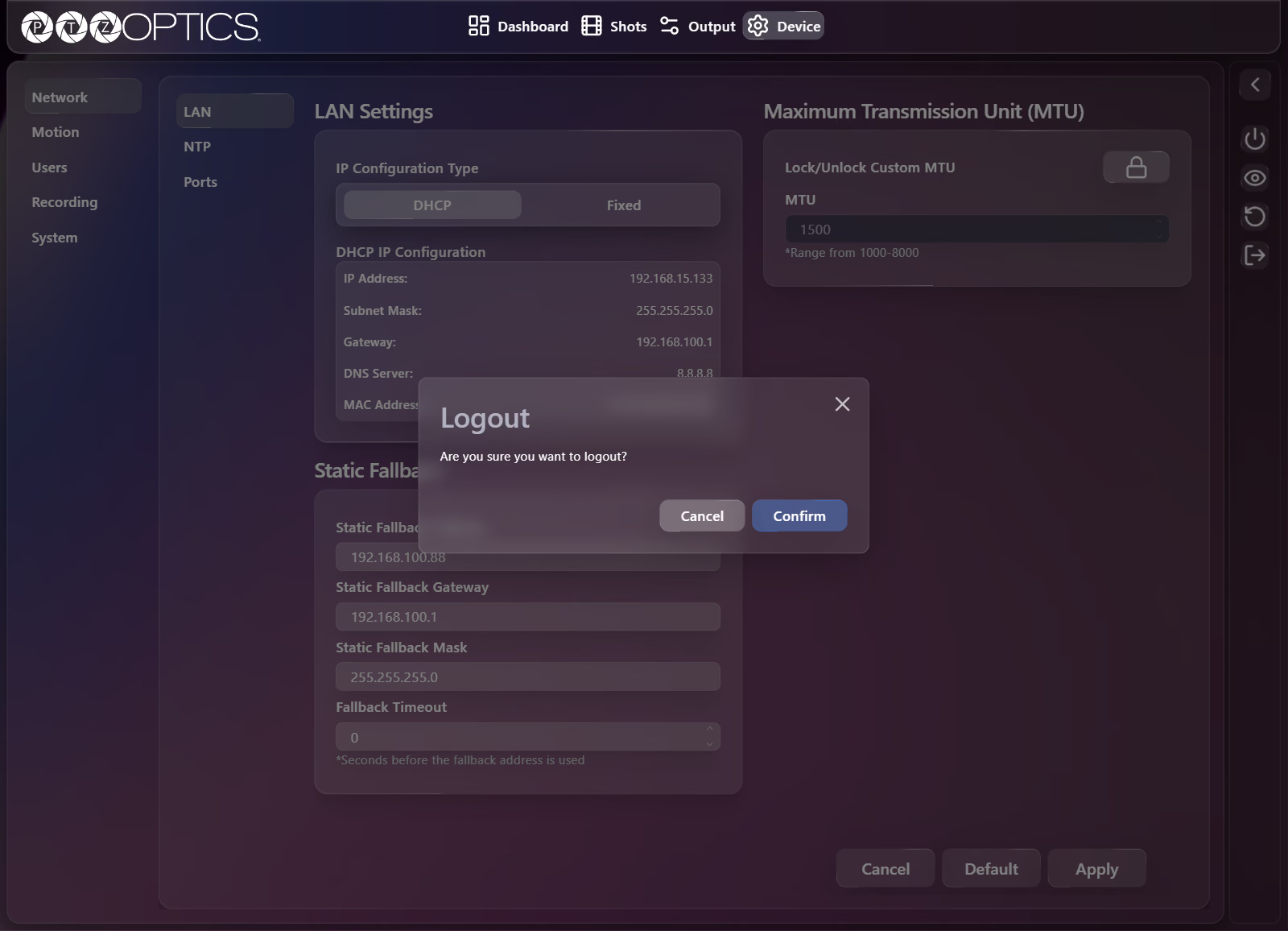
| Logout | Opens a Logout confirmation dialog ("Are you sure you want to logout?") with Cancel and Confirm buttons and ends your browser session. |