Device: Motion
Device > Motion configures automated subject tracking, autofocus behavior and distance limits, and Free D camera-tracking telemetry across three tabs: Tracking, Focus, and Free D (Beta). You can jump directly to Tracking or Focus from the sliders shortcuts under Quick Modes on the Dashboard.
Tracking
The Tracking tab defines how Automation behaves when toggled on from the Dashboard.
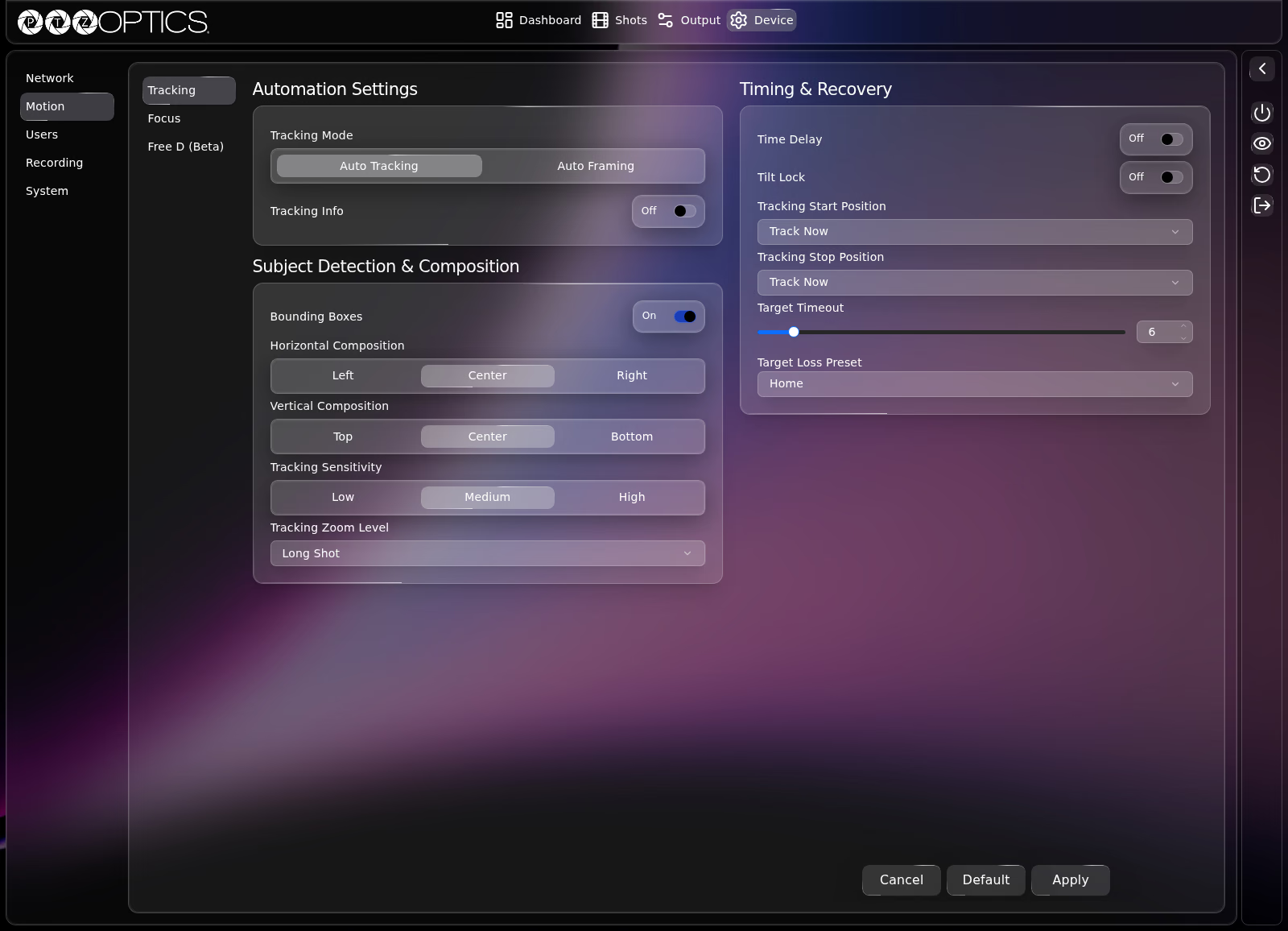
Automation Settings
| Setting | Control | Options |
|---|---|---|
| Tracking Mode | Segmented buttons | Auto Tracking (continuously follows the subject), Auto Framing (reframes subjects smoothly) |
| Tracking Info | Switch | On, Off |
Subject Detection and Composition
Shown while Tracking Mode is set to Auto Tracking:
| Setting | Control | Options |
|---|---|---|
| Bounding Boxes | Switch | On, Off (when On, draws subject detection boxes on the Dashboard live preview and adds a Targets tab in the shots strip so you can select the active tracking target) |
| Horizontal Composition | Segmented buttons | Left, Center, Right |
| Vertical Composition | Segmented buttons | Top, Center, Bottom |
| Tracking Sensitivity | Segmented buttons | Low, Medium, High |
| Tracking Zoom Level | Dropdown | Dynamic Zoom, Medium Close Up, Medium Shot, Long Shot |
Timing and Recovery
| Setting | Control | Range or Options |
|---|---|---|
| Time Delay | Switch | On, Off (shown in Auto Tracking mode) |
| Delay Time | Slider with number field | 0 to 60 seconds (shown when Time Delay is On) |
| Tilt Lock | Switch | On, Off (shown in Auto Tracking mode; locks vertical tilt during tracking so the camera pans horizontally only) |
| Tracking Start Position | Dropdown | Track Now, Home, or preset 0 to 254 |
| Tracking Stop Position | Dropdown | Track Now, Home, or preset 0 to 254 |
| Target Timeout | Slider with number field | 1 to 60 seconds before triggering Target Loss Preset after losing the subject |
| Target Loss Preset | Dropdown | Track Now, Home, or preset 0 to 254 |
Focus
The Focus tab configures focus mode, autofocus metering zone, sensitivity, focus lock, and minimum/maximum focus distance limits.
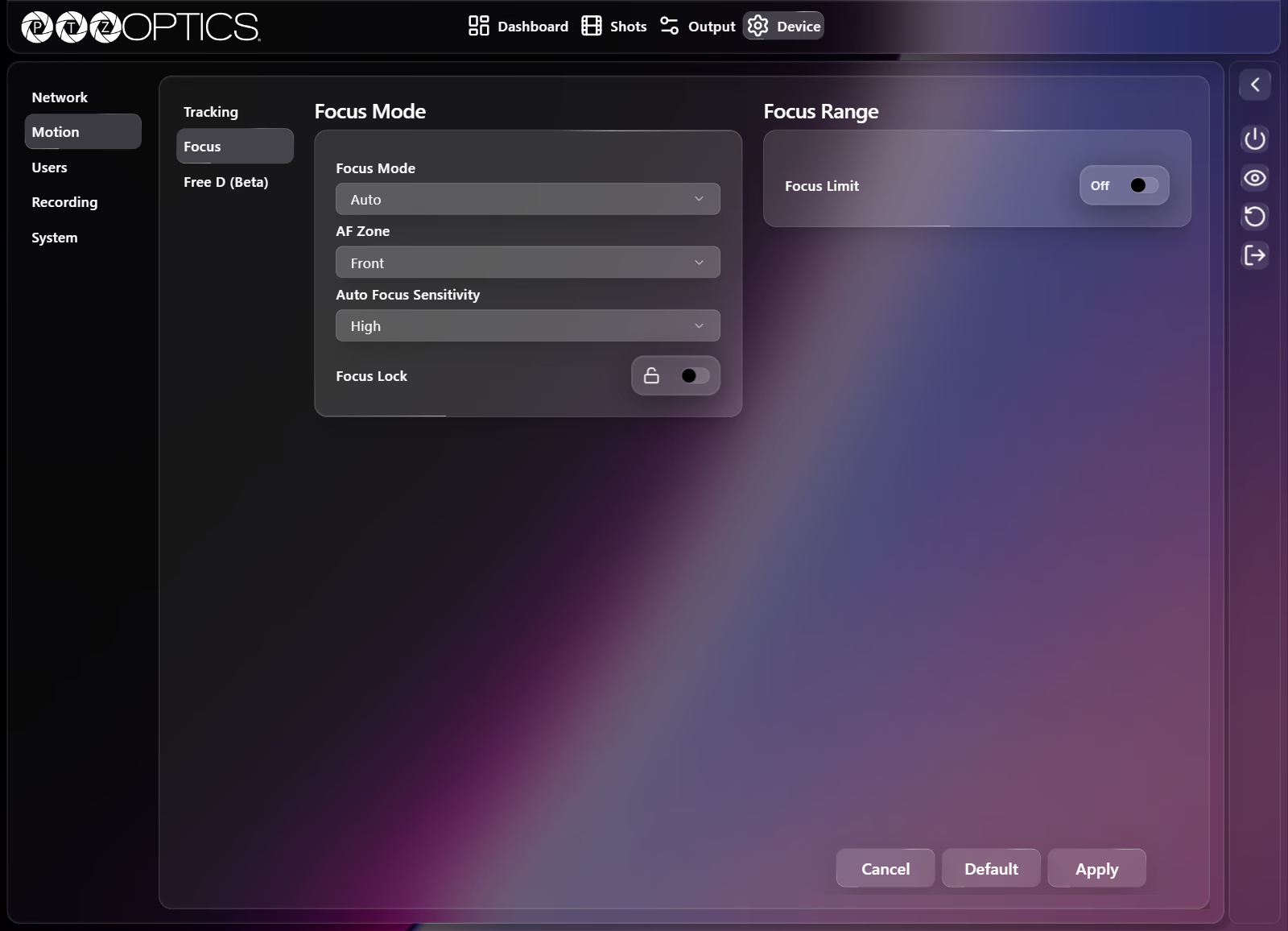
Focus Mode and Sensitivity
| Setting | Control | Options |
|---|---|---|
| Focus Mode | Dropdown | Auto, Manual |
| AF Zone | Dropdown | Top, Center, Bottom, Front |
| Auto Focus Sensitivity | Dropdown | Low, Normal, High |
| Focus Lock | Switch | On, Off |
Focus Range Limits
Under Focus Range, enabling Focus Limit restricts autofocus and manual focus travel between two distance boundaries so foreground or background distractions cannot pull focus away from your subject:
| Setting | Control | Options |
|---|---|---|
| Focus Limit | Switch | On, Off |
| Furthest Focus Position | Dropdown (shown when Focus Limit is On) | 1m, 1.5m, 2m, 3m, 4m, 5m, 6m, 8m, 10m, 15m, 20m, INF |
| Nearest Focus Position | Dropdown (shown when Focus Limit is On) | 1m, 1.5m, 2m, 3m, 4m, 5m, 6m, 8m, 10m, 15m, 20m |
Free D (Beta)
The Free D (Beta) tab streams or serves real-time pan, tilt, zoom, and focus telemetry over IP for virtual production and AR graphics systems. Applying Free D settings flags a camera reboot requirement.
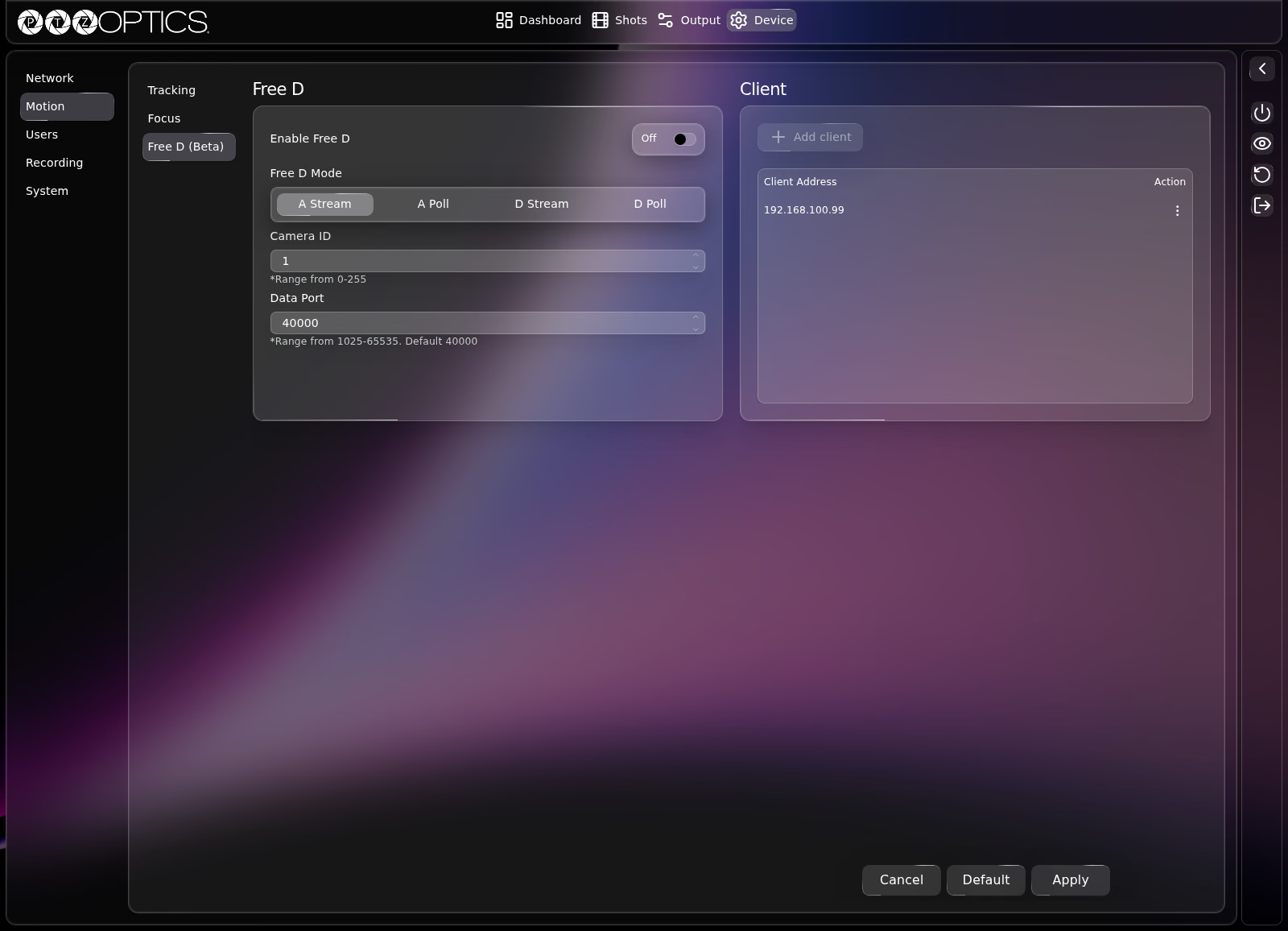
Free D Settings
| Setting | Control | Range or Options |
|---|---|---|
| Enable Free D | Switch | On, Off (toggles Free D output immediately) |
| Free D Mode | Segmented buttons | A Stream, A Poll, D Stream, D Poll |
| Camera ID | Number field | 0 to 255 |
| Data Port | Number field | 1025 to 65535 (default 40000) |
Client Destinations
The Client card configures the destination IP address that receives Free D telemetry:
| Control | Behavior |
|---|---|
| Add client | Opens the Add client dialog ("Enter the IP address of the client to receive Free D data.") with a Client Address field (for example 192.168.1.50) and Cancel / Add buttons. Up to 1 client destination can be configured (Add client is disabled once a client is added). |
| Client Address and Action | Lists the configured client IPv4 address. Open the three-dot Action menu and select Edit to update the Client Address in the Edit client dialog. |