Device: Recording
Device > Recording mounts and formats a microSD / SD card in the camera, configures onboard recording file settings, and lets you search, download, rename, or delete saved recordings. Once an SD card is mounted, you can start and stop recording live from the Record (REC) button under Quick Modes on the Dashboard (or jump here with the sliders icon beside Record).
SD Card Status and Mounting
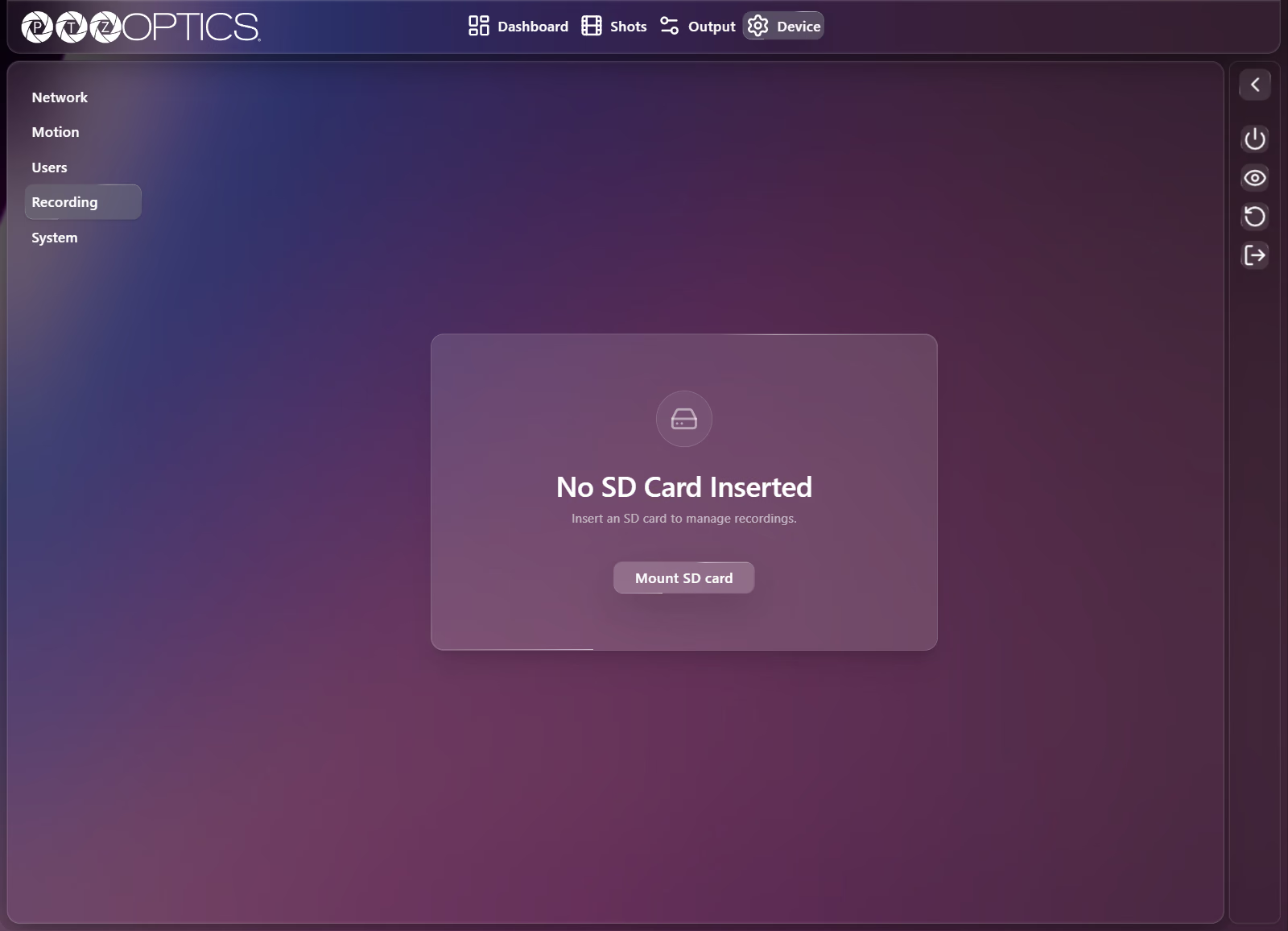
When no card is mounted, the page displays No SD Card Inserted ("Insert an SD card to manage recordings.") with a Mount SD card button.
When an SD card is present, the SD Card card displays its storage readout and card management buttons (disabled while an active recording is in progress):
| Item or Button | Behavior |
|---|---|
| Status, Capacity, Free Space | Shows whether the card is Mounted or Unmounted, total card capacity, and remaining free space. |
| Format | Opens "Are you sure you want to format the SD card?" with Cancel and Proceed buttons. |
| Mount / Unmount | Mounts an inserted card for recording, or safely unmounts a mounted card before physical removal. |
Selecting Format and confirming with Proceed permanently erases every recording and file on the SD card and initializes a fresh file system for the camera. Download any recordings you need before formatting.
Recording Settings
When an SD card is mounted, the Recording Settings card configures how onboard recordings are split and named:
| Setting or Button | Control | Range or Options |
|---|---|---|
| Segment Duration | Number field | 1 to 60 min (*Range from 1-60 min) |
| Format | Dropdown | TS, MP4 |
| Filename Prefix | Text field | Required prefix up to 30 characters (placeholder Enter Prefix) |
| Filename Date Format | Dropdown | YYYY-MM-DD HH:MM:SS, MM-DD-YYYY HH:MM:SS |
| Default / Save | Action buttons | Restores default recording parameters or saves your changes. |
Managing Saved Recordings
Below Recording Settings, the Recordings card lists .ts and .mp4 files saved on the mounted SD card (showing "No Recordings yet" until you record your first clip):
| Control or Column | Behavior |
|---|---|
| Search filenames | Filters the recordings table by filename and displays the matching result count. |
| Filename and Size (MB) | Sortable columns showing each clip's filename and file size in megabytes. |
| Actions | Lets you download a recording to your computer, rename a recording (keeping its .ts or .mp4 extension), or delete a recording via the Delete recording? confirmation dialog (actions are disabled while recording is actively in progress). |