Device: Users
Device > Users manages account credentials, HTTP API authentication, and bearer API tokens across two tabs: Access and API.
Access
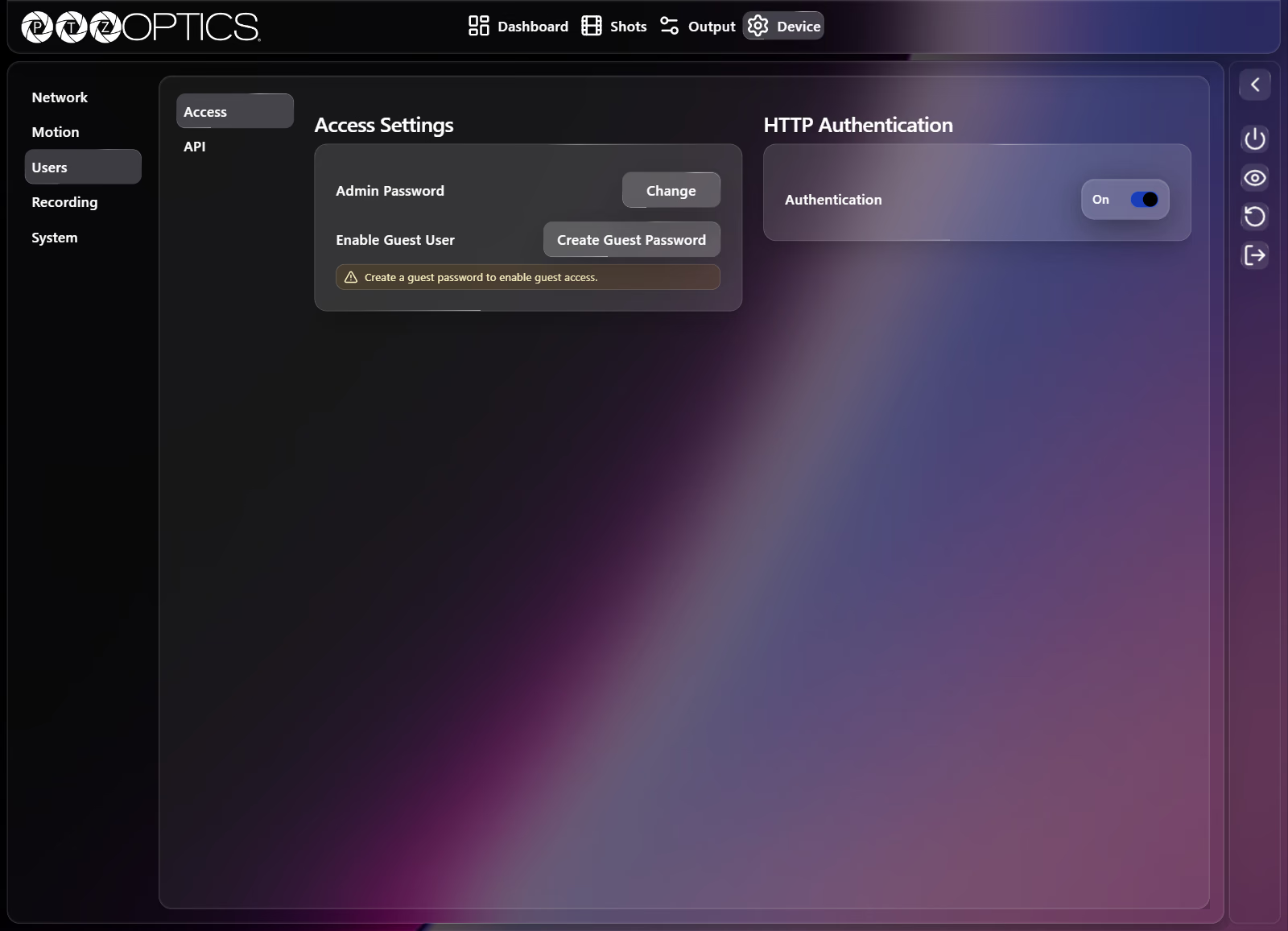
The Access tab controls administrator and guest login credentials as well as HTTP CGI authentication.
Admin and Guest Passwords
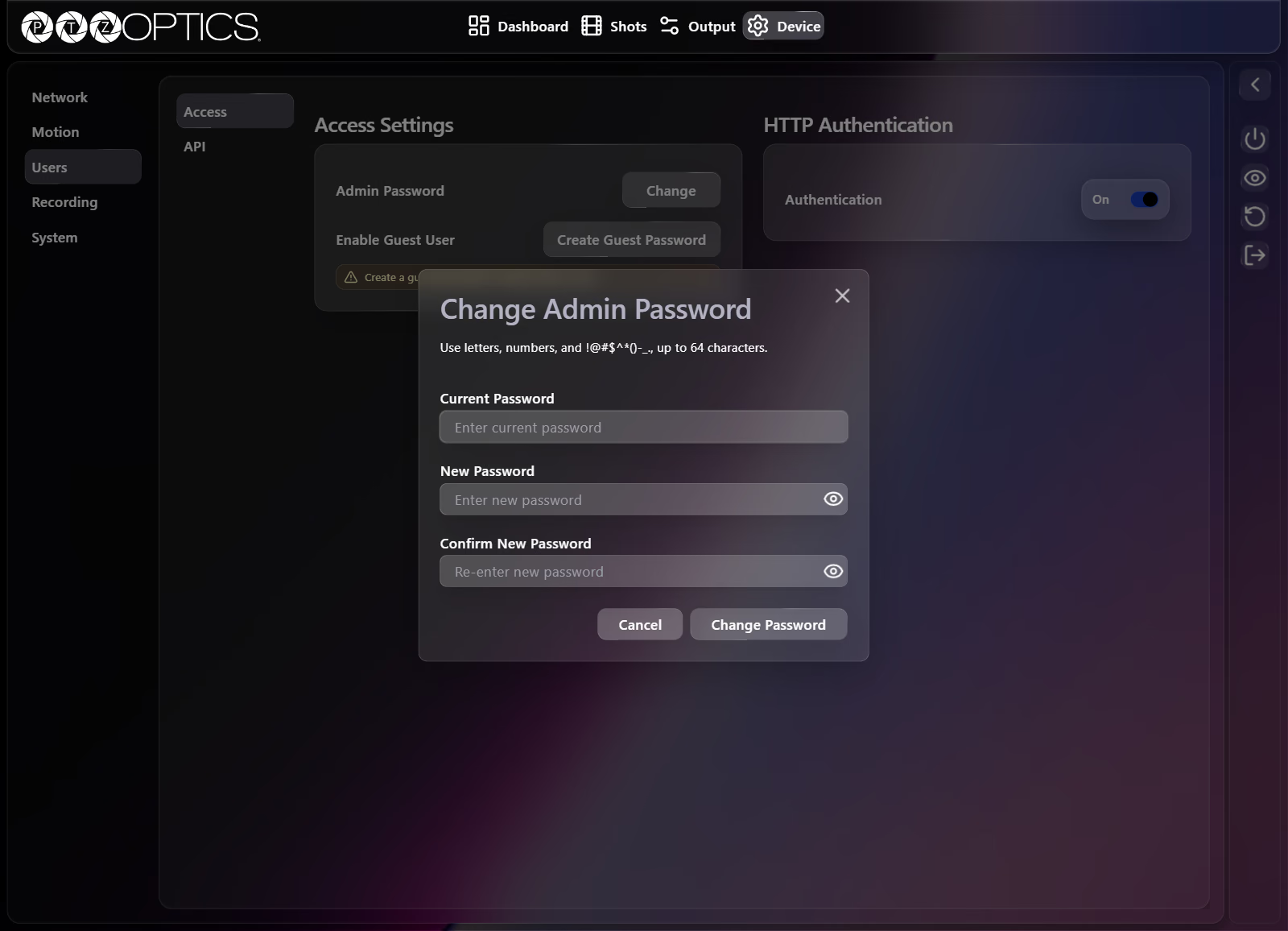
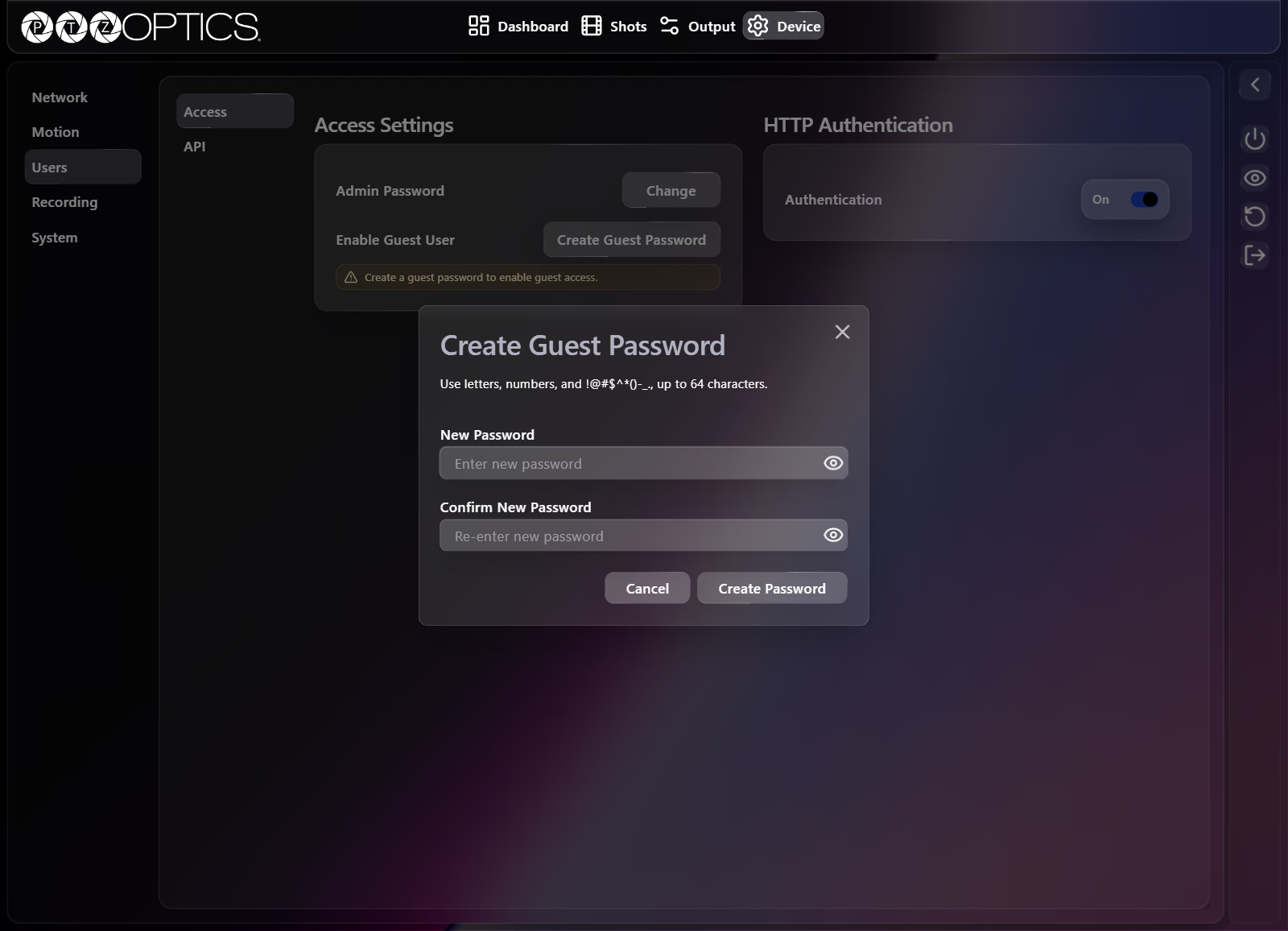
Passwords accept letters, numbers, and !@#$^*()-_. up to 64 characters. Password fields include an eye button to show or hide characters.
| Setting | Control | Behavior |
|---|---|---|
| Admin Password | Change button | Opens the Change Admin Password dialog (Current Password, New Password, Confirm New Password, with Cancel and Change Password buttons). |
| Enable Guest User | Create Guest Password button | Opens the Create Guest Password dialog (New Password, Confirm New Password, with Cancel and Create Password buttons) to enable guest access. |
HTTP Authentication
| Setting | Control | Options |
|---|---|---|
| Authentication | Switch | On, Off (requires credentials on HTTP API requests when On; see HTTP API Getting Started) |
API Tokens
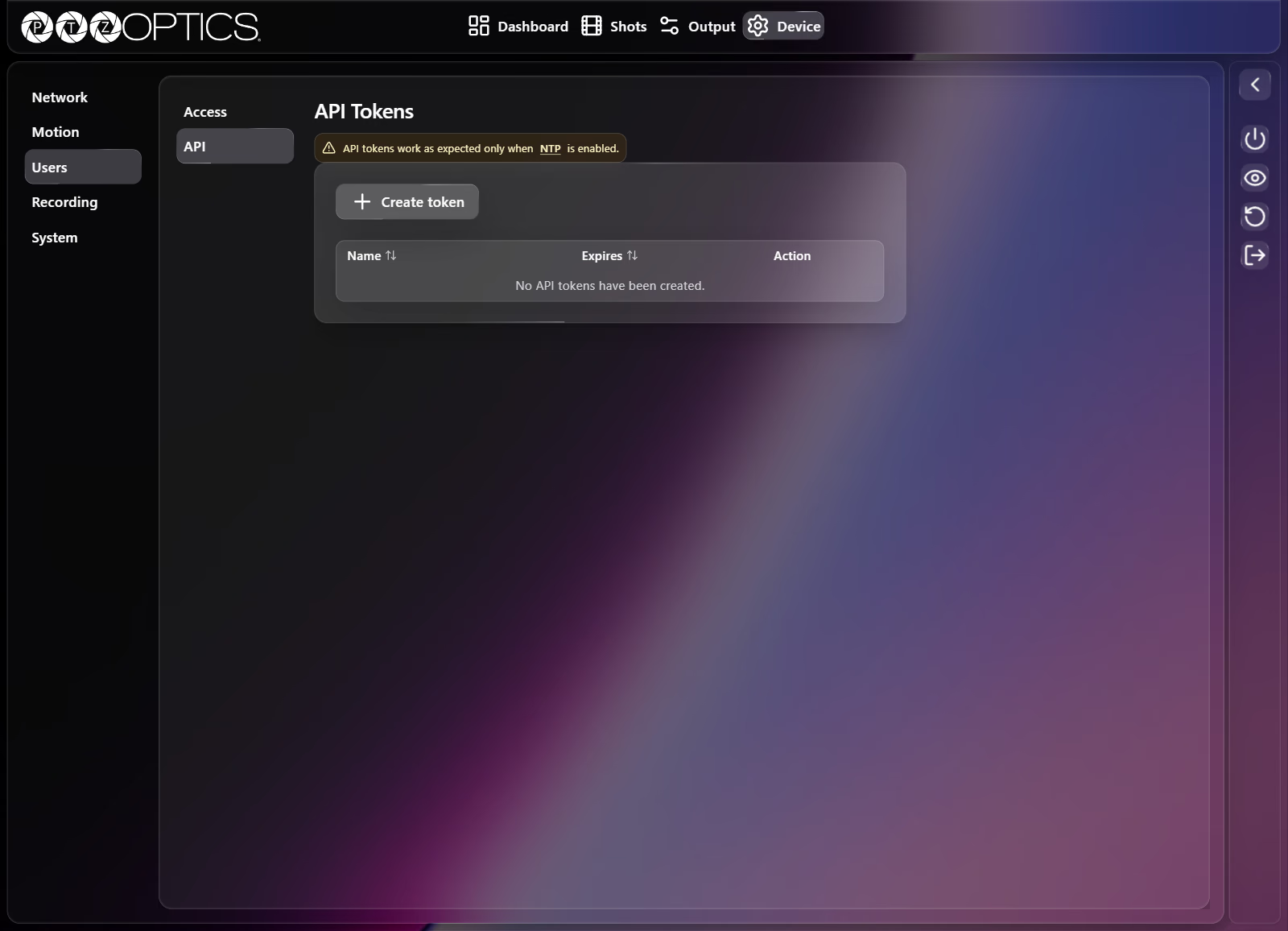
The API tab lets you issue and revoke named API tokens for integrations and control software.
Enable Time Sync under Device > Network > NTP before using API tokens. As noted on the API tab, API tokens work as expected only when NTP is enabled; see Device: Network.
Create an API Token
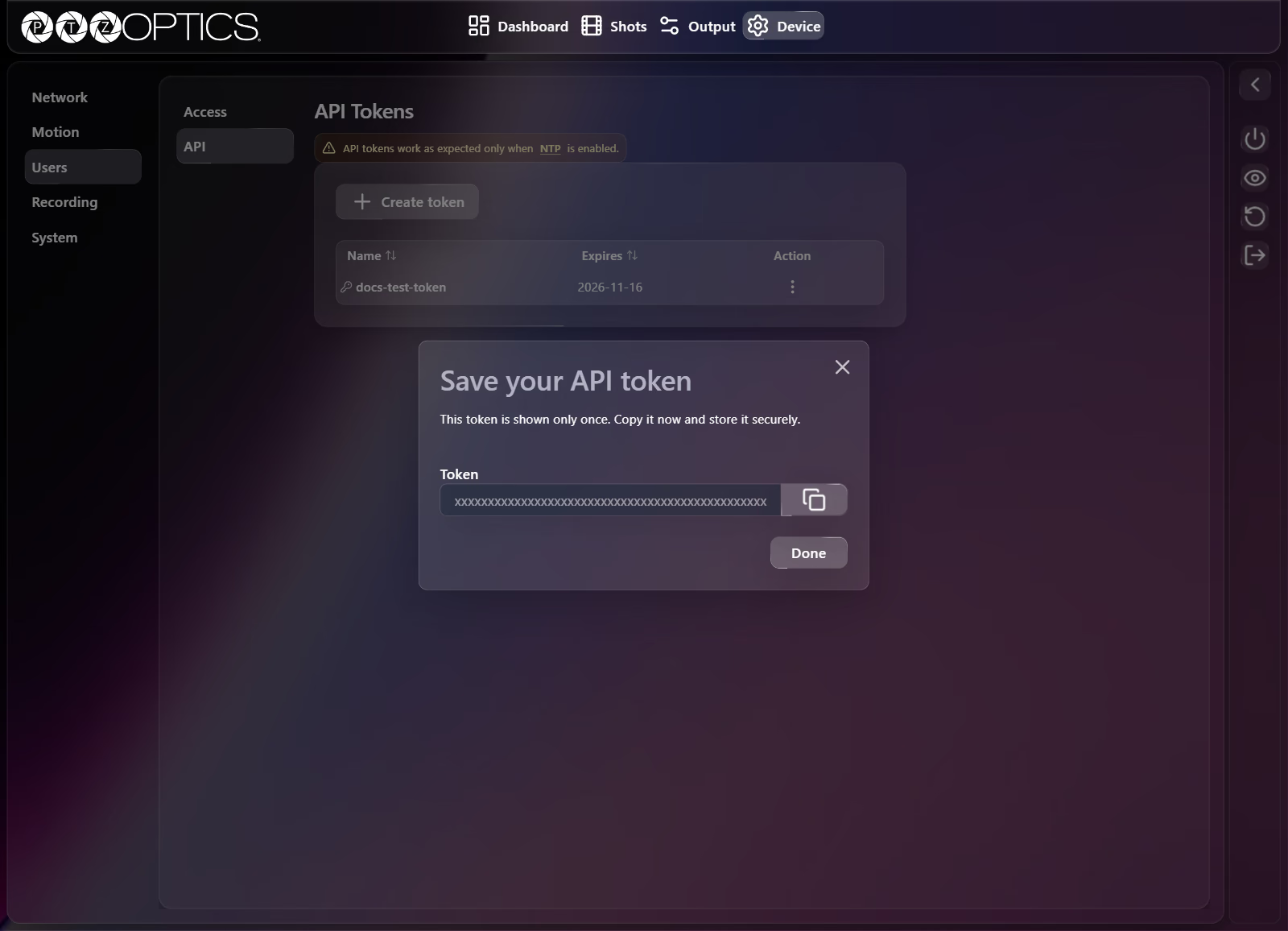
Horizon displays the generated token value only once in the Save your API token dialog. Copy and store it securely before selecting Done.
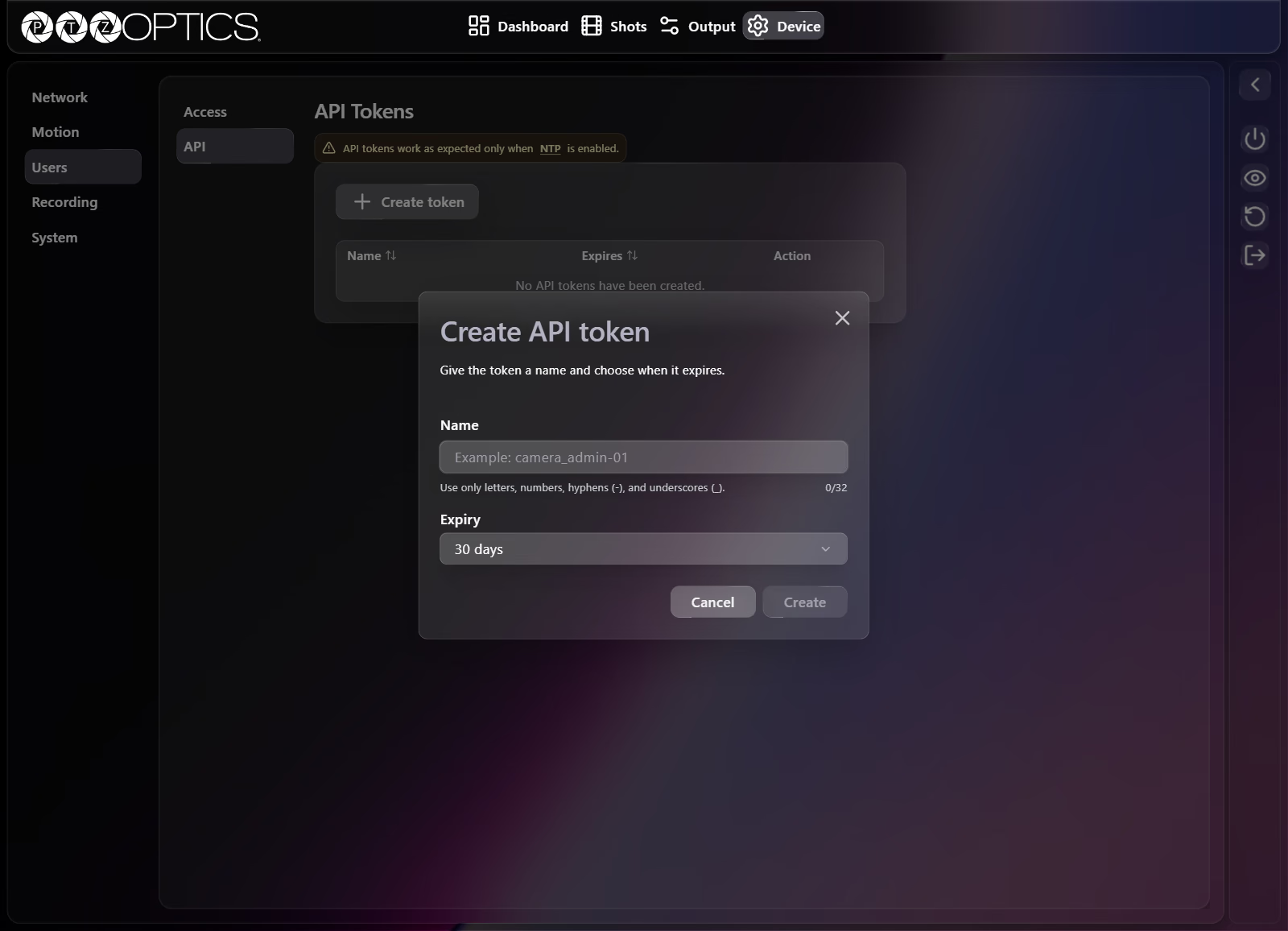
- Open Device > Users > API and select Create token.
- In Create API token, enter a Name using letters, numbers, hyphens (
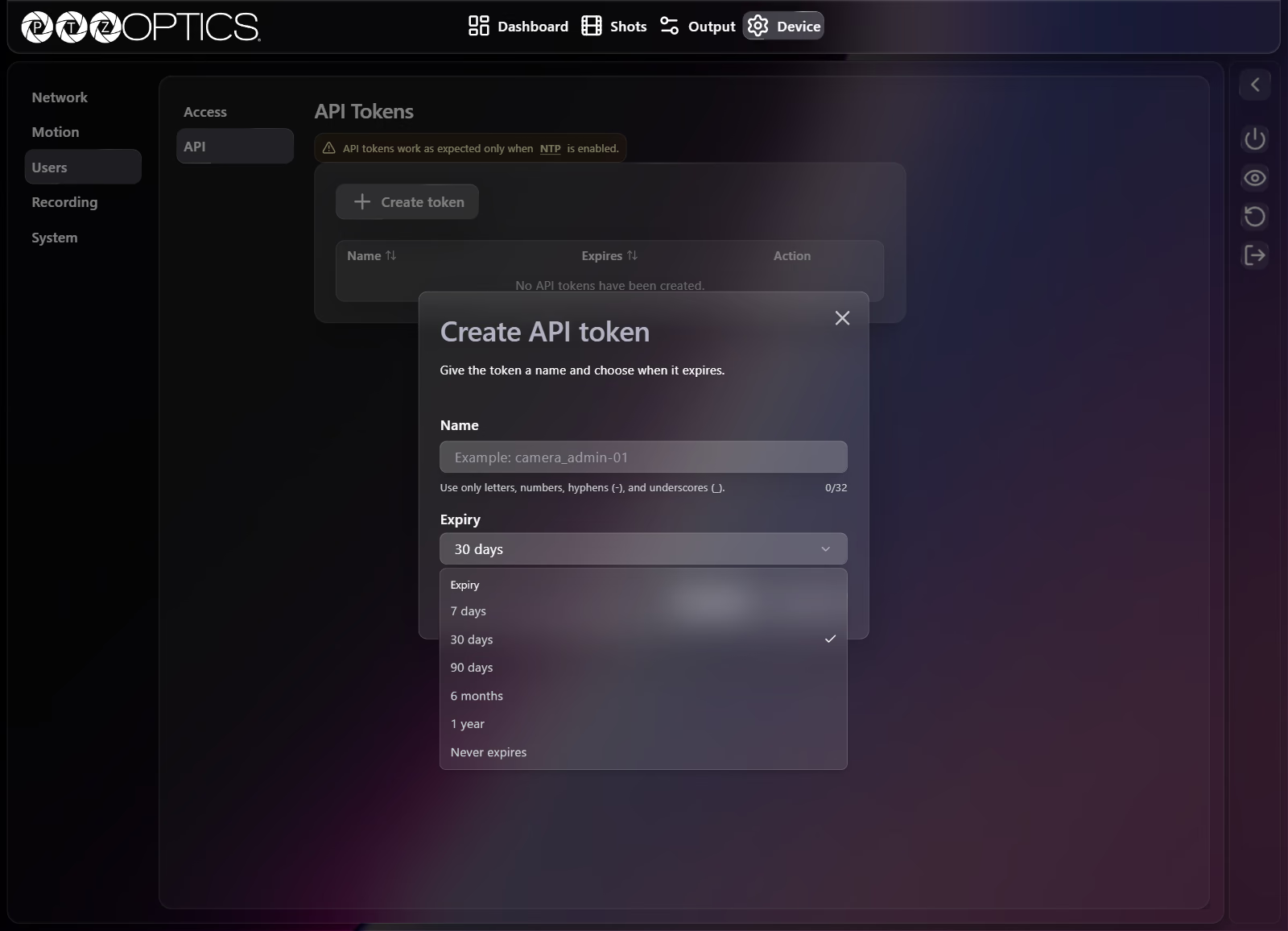
-), and underscores (_), up to32characters (placeholderExample: camera_admin-01). - Select an Expiry period from the dropdown:
7 days,30 days,90 days,6 months,1 year, orNever expires. - Select Create.
- In the Save your API token dialog, select the copy button to copy the token, store it in your integration or secret manager, and select Done.
Refresh or Delete an API Token
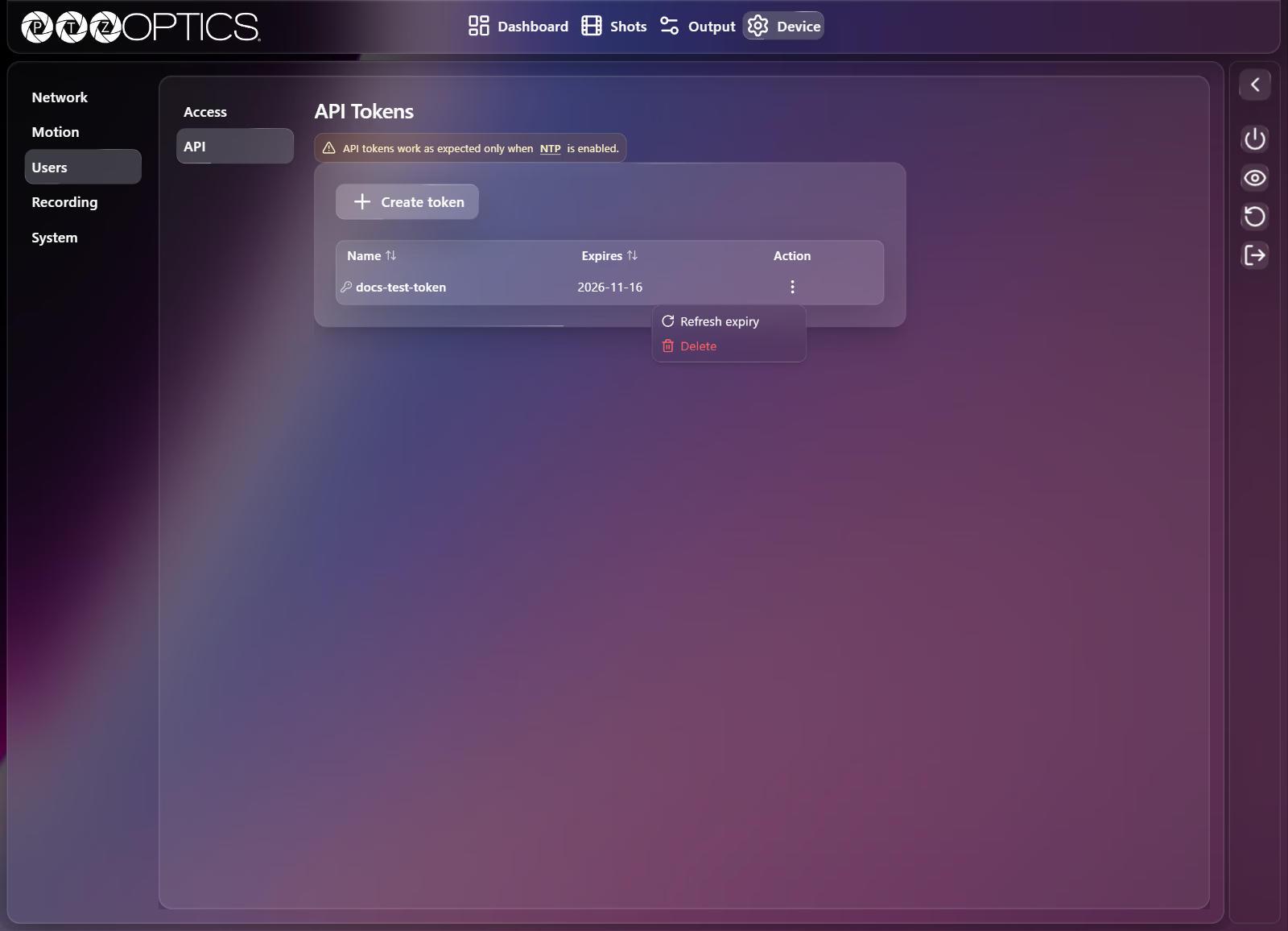
Created tokens appear in the table with Name, Expires (YYYY-MM-DD), and an Action menu (three-dot icon):
| Action | Behavior |
|---|---|
| Refresh expiry | Extends the token's expiration date from the current time. |
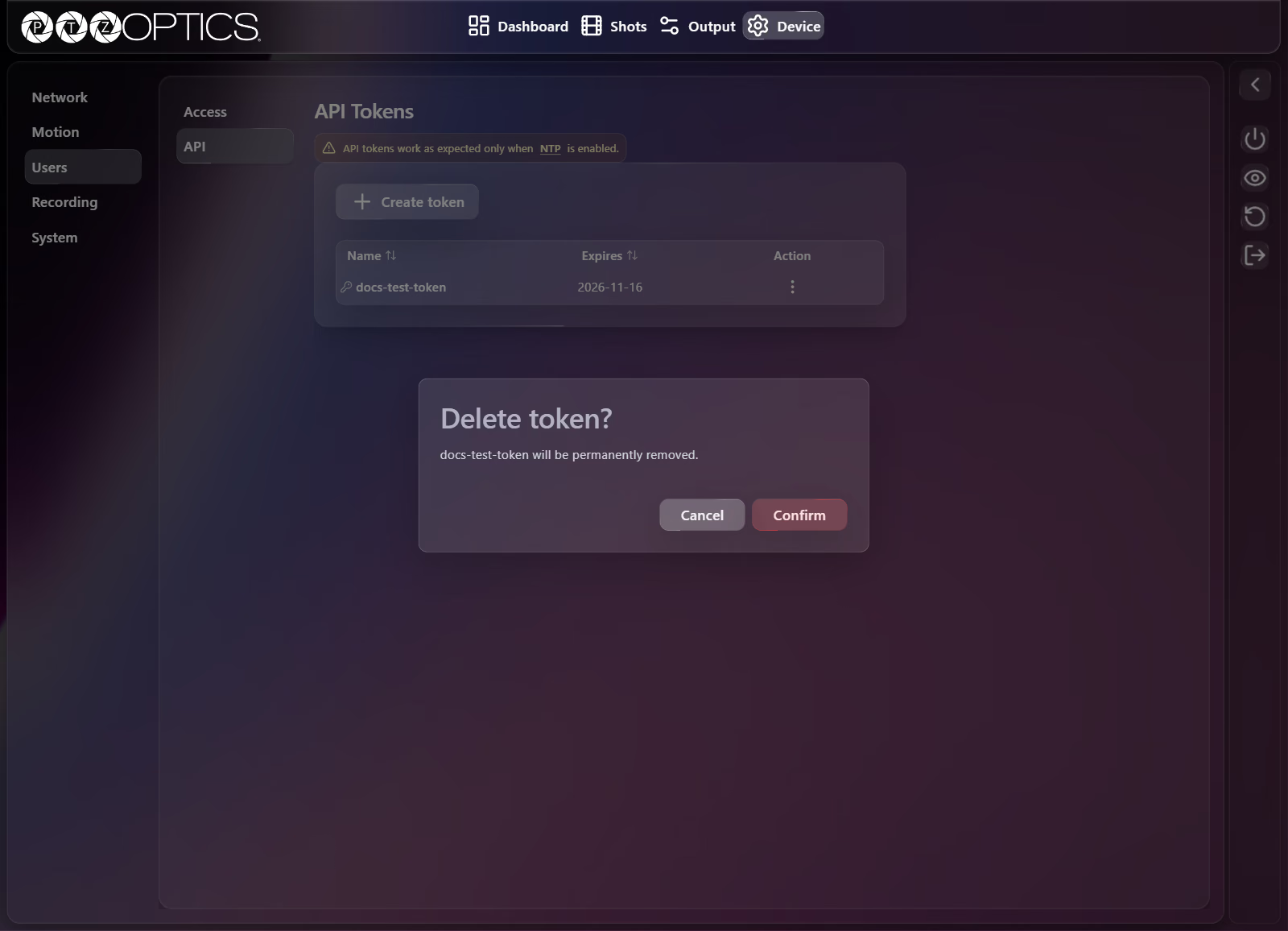
| Delete | Opens the Delete token? confirmation dialog ("[token name] will be permanently removed."). Select Confirm to revoke and delete the token immediately. |