Logging In
Login
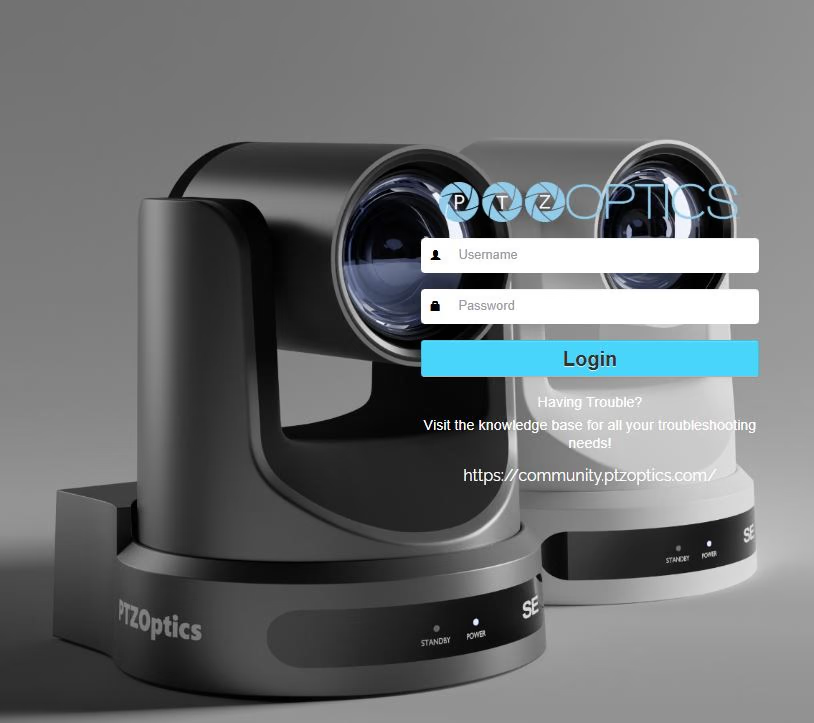
- Open up a web browser.
- Enter "ptzoptics.local" or the camera's IP address into the search bar and press enter.
- This will bring you to the Login screen.
- If this is your first time logging in, a prompt will appear to enter a new custom password.
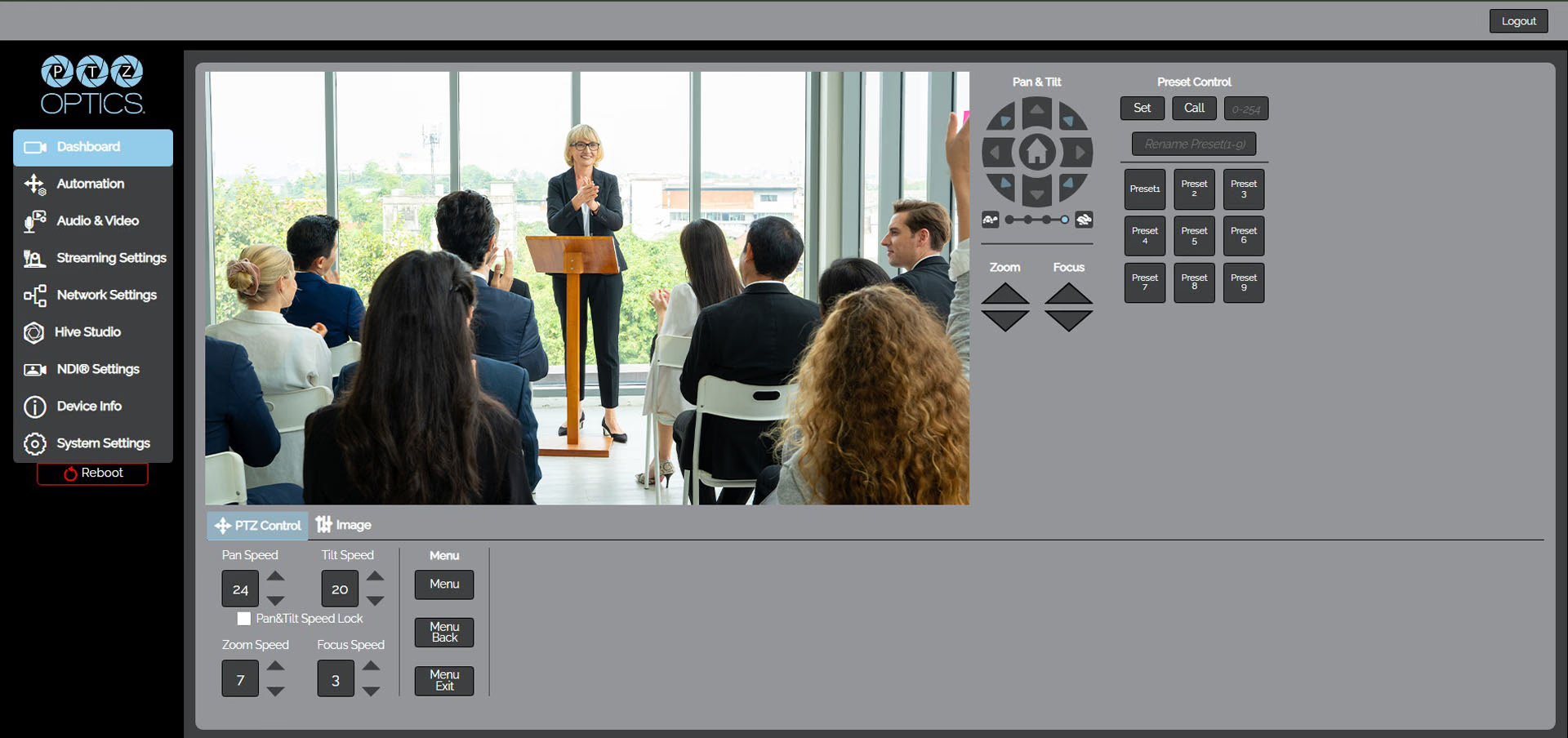
- Once logged in, you will be brought to the home screen.
The PTZOptics SimplTrack3 Web UI is a browser-based control interface that provides full access to your SimplTrack3 camera's PTZ controls, image settings, auto-tracking configuration, streaming setup, NDI settings, and device management.
Find Your Camera on the Network
The SimplTrack3 camera supports mDNS, so you can reach it by hostname without knowing the IP address.
-
Open a web browser on any device connected to the same network.
-
Type the following address and press Enter:
http://ptzoptics.local/ -
This will take you to the SimplTrack3 Web UI.
-
The camera's IP address will be displayed in the search bar. We recommend noting it down for future reference.
You will be prompted to set up a password on your first login.
- Default Username: admin
- Create a strong password.
Give each camera a unique Device ID from the SimplTrack3 Web UI Device Info tab. Then reach each camera by its ID: http://camera-one.local, http://camera-two.local, etc.
Sidebar Overview
The sidebar provides navigation across all sections of the web interface:
| Element | Description |
|---|---|
| PTZOptics Logo | Displayed at the top of the sidebar. |
| Dashboard | Main camera control page with live preview, PTZ controls, presets, OSD menu access and image settings. |
| Automation | Auto-tracking configuration, zone management, and tracking actions. |
| Audio & Video | Video encoding, stream configuration, and audio settings. |
| Streaming Settings | RTMP(S) and RTSP streaming configuration. |
| Network Settings | LAN configuration and NTP time synchronization. |
| Hive Studio | Hive linking interface. |
| NDI Settings | NDI discovery, naming, and output configuration. |
| Device Info | Device identification, firmware version, and support. |
| System Settings | Tracking behavior, control protocol, IR remote, user management, firmware updates, and factory resets. |
| Reboot | Restarts the camera. |
| Logout | Logs out of the web interface. Located in the top right-hand side of the page. |