System Settings
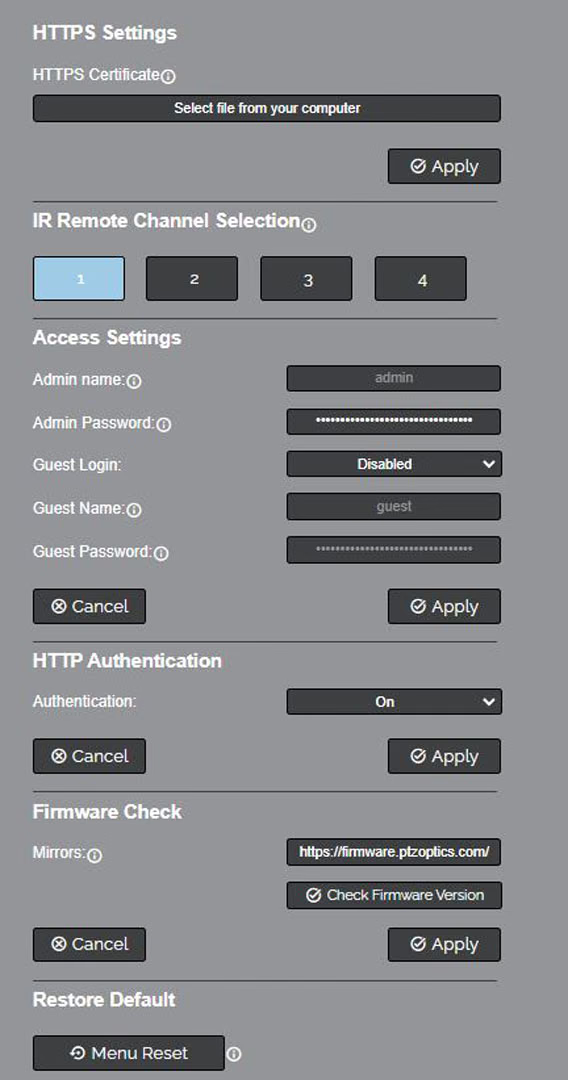
The System Settings page gives access to the HTTPS Settings, IR Remote Channel Selection, Access Settings, Firmware Check, Restore Default (Basic), Firmware Upload & Restore Default (Advanced) sections.
HTTPS Settings
- HTTPS Certificate: Upload a HTTPS Certificate from your computer.
- HTTP Port: The HTTP Port is how you reach the web interface of your camera (http://[Camera IP]:[port]/)
IR Remote Channel Selection
- 1 – 4 Button: Define the communication channel the camera utilizes with the remote control. This allows you to easily use multiple cameras with a single IR remote.
Access Settings
- Admin Name: Administrator username login. This username can not be changed.
- Admin Password: Administrator password. If you desire to change the password, all letters, numbers, and specifically “!@#$^()” can be used, up to 15 characters. Please note the circles in the field are encrypted and do not reflect the password saved on the camera.
- Guest Login: Enable or Disable. Sending the IP address to a guest will provide the guest with a limited version of the camera Web UI. Standard camera operations will be available, but administrative privileges will not be.
- Guest Name: Guest username login. This username can not be changed.
- Guest Password: Guest password. If you desire to change the password, all letters, numbers, and specifically “!@#$^()” can be used, up to 15 characters. Please note the circles in the field are encrypted and do not reflect the password saved on the camera.
HTTP Authentication
- Enable HTTP Authentication: Toggle HTTP Authentication on or off. When enabled, the camera will require a username and password to access the web interface.
- Click Apply to save any changes made.
Firmware Check
- Mirrors: Define a server address for aquiring the latest firmware version.
- Default: http://firmware.ptzoptics.com
- Check Firmware Version: Click to check for the latest firmware version available for your camera. Make sure your camera is connected to the internet for this function to work.
Restore Default (Basic)
- Menu Reset: Reset all OSD Menu settings to factory default. (Does not include Network settings)
Firmware Upload
- Choose File: Click to select a firmware file from your computer to upload to the camera.
- Apply: Click to upload the selected firmware file to the camera. Do not power off the camera during the upload process.
Restore Default (Advanced)
- Network Reset: Reset all Network settings to factory default.
- Factory Reset: Reset all camera settings to factory default, including Network settings.
Focus Calibration
We only recommend performing focus calibration as a last resort if you are experiencing focus issues with your camera. If you are experiencing focus issues, please contact PTZOptics Support before performing focus calibration.
- Calibrate: Click to begin the focus calibration process. The camera will automatically adjust the focus range to ensure optimal focus performance. Do not move the camera during this process.
- Restore Calibration: Click to restore the focus calibration to factory default settings.
The System Settings page consolidates tracking behavior, external control protocol configuration, IR remote channel selection, user management, firmware updates, and factory reset options.
Tracking/Framing Behavior
Controls the overall operating mode of the SimplTrack3's automation engine.
| Setting | Options | Description |
|---|---|---|
| Tracking/Framing | Tracking, Framing | Tracking: The camera follows a subject as they move across the scene. Framing: The camera adjusts its framing to keep detected subjects within a defined composition without actively following movement. |
| Track on Startup | Off / On | When enabled, auto-tracking activates automatically when the camera powers on, without requiring manual activation from the web interface or a control command |
Click Apply to save.
Control Settings
Configures how external devices (joystick controllers, switchers, automation systems) communicate with the camera over the network.
| Setting | Options | Description |
|---|---|---|
| Control Enable | Off / On | Enables or disables external network control of the camera |
| Control Mode | Server, Client | Server: The camera listens for incoming control commands. Client: The camera initiates a connection to a remote controller. |
| Control Protocol | TCP, UDP | The transport protocol used for control commands. Default TCP: 5678. |
| Control Port | Numeric (default: 5678) | The network port used for control communication |
| Receive Commands From IP | IP address | Restricts which IP address is allowed to send control commands. 0.0.0.0 accepts commands from any source. Read-only when Control Mode is Server. |
Click Apply to save. Click Refresh to reload.
IR Remote Channel Selection
Configures which IR remote control channel the camera responds to. This is essential in multi-camera environments to prevent one remote from controlling multiple cameras.
| Setting | Description |
|---|---|
| Channel 1–4 | Select which IR channel (1, 2, 3, or 4) this camera listens on. Match this to your IR remote's channel selector switch. |
User Management
Displays all user accounts configured on the camera.
| Column | Description |
|---|---|
| Username | The user's login name |
| Role | The user's access level — Admin (full access) or User (limited access) |
| Change Password | Opens a dialog to change the user's password |
The SimplTrack3 ships with two default accounts:
| Username | Role | Description |
|---|---|---|
| admin | Admin | Full administrative access to all settings |
| guest | User | Limited access for monitoring and basic control |
Firmware Update
Firmware Info
| Field | Description |
|---|---|
| Mirrors | URL of the firmware distribution server (default: http://firmware.ptzoptics.com/). |
| Check Firmware | Queries the firmware server to determine if a newer firmware version is available |
Upload Firmware
A drag-and-drop area (or click-to-browse) allows you to select a local firmware file and upload it directly to the camera.
Only install firmware files obtained from PTZOptics. Installing incorrect or third-party firmware can cause the camera to become unresponsive and may void your warranty.
Restore Defaults
Three reset options are available:
| Reset | Description |
|---|---|
| Network Reset | Resets all network settings (IP configuration, ports) to factory defaults. The camera will revert to DHCP mode. |
| Menu Reset | Resets all image and display menu settings to factory defaults. Does not affect network or system settings. |
| Factory Reset | Resets all settings on the camera to factory defaults. This cannot be undone. |
Factory Reset erases all presets, tracking zones, profiles, network settings, and configurations. Only perform a factory reset if you intend to fully reconfigure the camera from scratch.